 PixPin
Appearance
v3.6.6.0 Release Notes
October 29, 2026
The PixPin 3.6 stable release adds Document Recognition for members, which converts images into documents and supports export to PDF, Markdown, Word, and LaTeX. It also adds scrolling screenshots across displays and support for multiple window pins, and redesigns the recognition and translation dialogs. CSV and TIFF support and improvements to text recognition, annotations, saving, and pins further enhance everyday workflows.
Download
Windows
macOS
Screenshot
Features
- [Scrolling Screenshot] Scrolling screenshots can now span multiple displays.
Settings
- [Screenshot] Added an "Exit screenshot" option for "Left double-click action" and "Middle-click action" under "Config" - "Screenshot."
- [Screenshot] Increased the maximum corner radius to 100.
- [Element Detection] Padding now accepts negative values, down to -50.
Improvements
- [Screenshot] Shortcut hints in the screenshot interface now automatically move out of the pointer's way.
- [Screenshot] Improved the display of custom screenshot windows.
- [Scrolling Screenshot] Adjusted the built-in shortcuts.
Pin
Features
- [Window Pin] Multiple window pins can now be displayed at the same time.
Settings
- [Text Pin] HTML text pins now support a maximum width, which defaults to 0 for no width limit.
- [Text Pin] Unified the width value ranges for HTML and plain text pins.
- [Pin] Added an "Adjust pins to keep them visible" option under "Config" - "Pin."
- [Window Pin] Added a "Hide original window" option. The original window is kept visible by default. Pinned browser windows can now refresh correctly even when covered by other windows.
- [Pin] When double-clicking text in a pin, you can now choose between "Single line" and "Paragraph" selection modes. Switch to "Single line" if double-clicking selects more text than intended.
Improvements
- [Pin] Holding
Ctrland left-clicking another pin now also selects the pin that previously had focus. - [Pin] Added shortcut labels to more context menu items.
- [Pin] When switching to thumbnail mode with
Shift + Left Double ClickorR, PixPin now prefers the size set by cropping through the context menu.
Annotation
Features
- [Annotation] Added a wavy line style for Polyline annotations.
- [Annotation] Text annotations now support languages written from right to left, such as Persian and Arabic.
- [Auto Mosaic] Selection areas can now be adjusted manually.
- [Annotation] Added an outline option for Watermark annotations.
- [Annotation] Serial Number annotations now support shortcuts for quickly changing the number. Press
Zto increase it andXto decrease it. - [Annotation] Press
Tabto switch between Ellipse and Rectangle annotations.
Settings
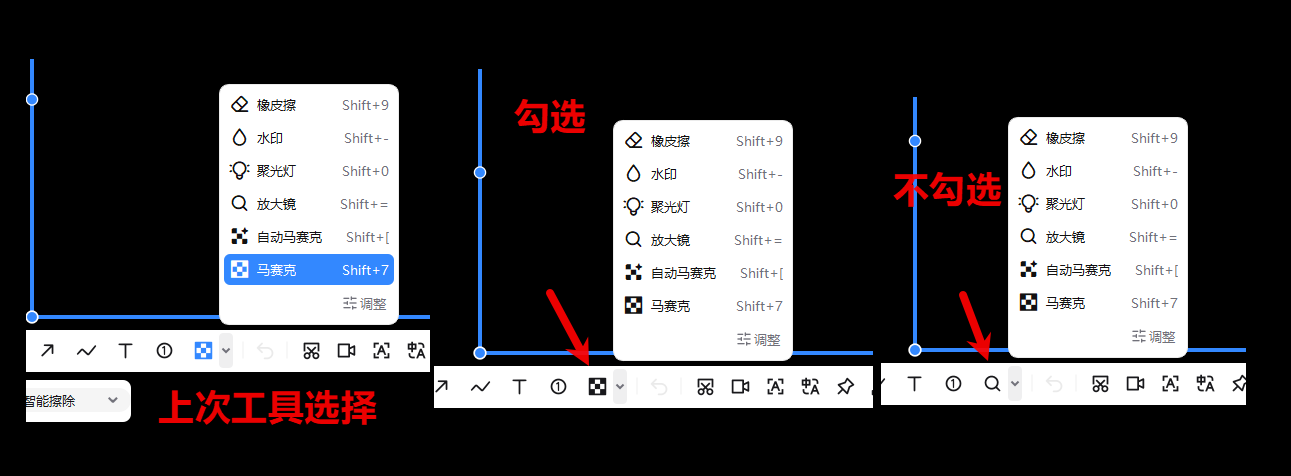
- [Annotation] Added a "Remember toolbar tool selection" option under "Config" - "Annotation." It is disabled by default. When disabled, a tool selected from an annotation tool's submenu remains in that submenu the next time you start annotating.
Remember Toolbar Tool Selection
- [Annotation] Added a default brush mode setting for the Highlighter under "Config" - "Annotation" - "Highlighter." Use
Shift + Left Clickto switch modes.
Improvements
- [Annotation] Watermark annotations now always stay on top of other annotations so that Mosaic and Eraser tools do not affect them.
- [Annotation] Improved watermark display when switching selection areas.
- [Annotation] Improved the behavior of Text and Serial Number annotations after rotating a pin.
Recording and Export
Settings
- [Quick Recording] Added a default save location setting under "Config" - "Save" - "Quick Recording." It is disabled by default.
Recognition and Translation
Features
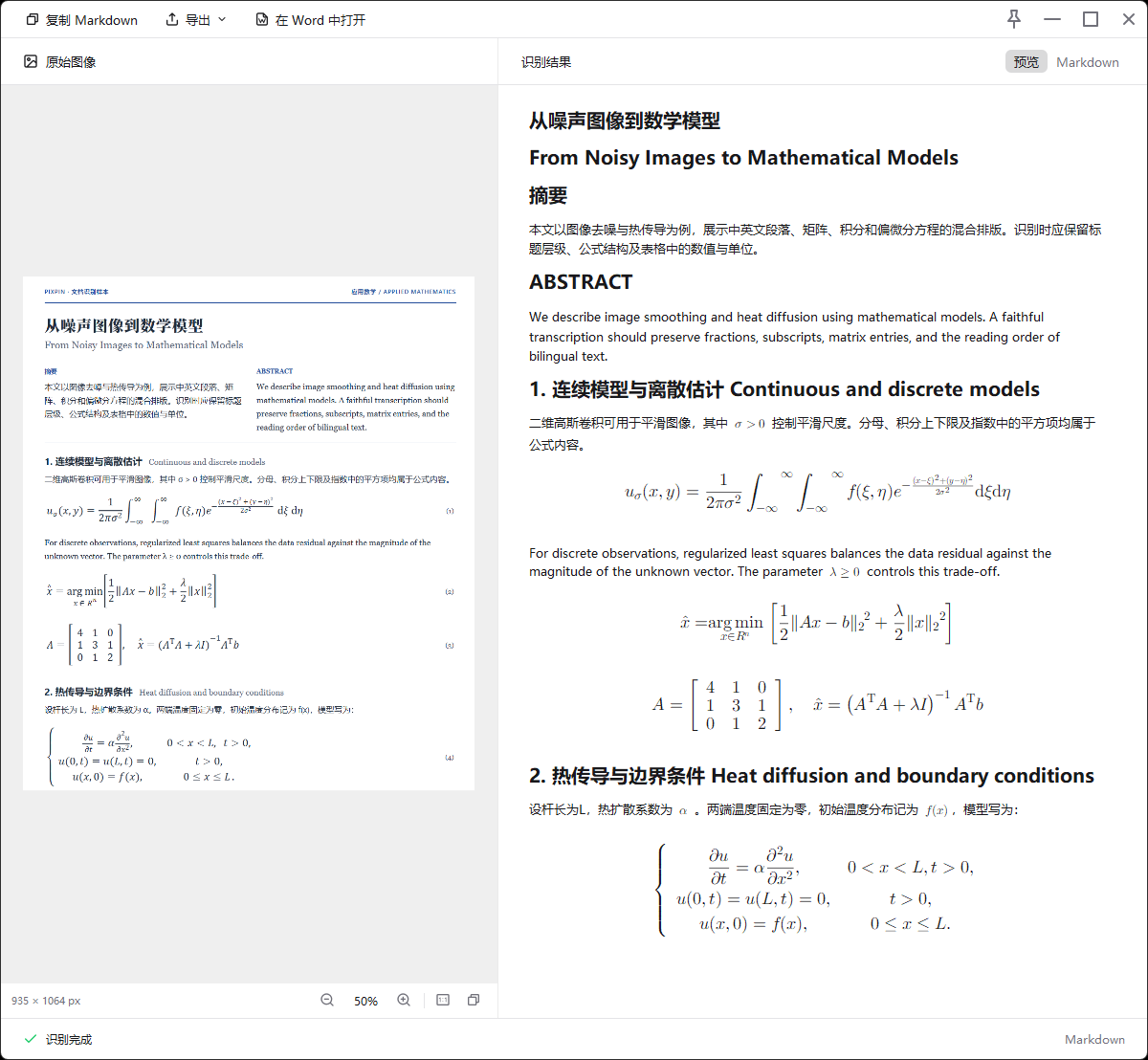
- [Member Feature - New] [Document Recognition] Added Document Recognition, which recognizes both text and formulas in images and supports export to PDF, Markdown, Word, and LaTeX. The shortcut is
Shift + E.
Document Recognition Example
- [Text Recognition] Text-to-speech audio files can now be downloaded.
- [Text Recognition] Added a font size selector to the recognition window.
- [Text Recognition] Images can now be copied from the recognition window.
- [Member Feature - New] [Table Recognition] Added CSV as a save format.
- [Member Feature - New] [Table Recognition] Press
Backspaceto delete selected cells. With a column or row header selected, pressCtrl + -(minus) to delete the entire row or column, including its cells. PressCtrl + Zto undo. - [Member Feature - New] [Formula Recognition] Added support for adjusting the font size.
Settings
- [Member Feature - New] [Table Recognition] Added an "Automatically close the original pin after table recognition" option to the recognition window.
Improvements
- [Text Recognition/Formula Recognition/Table Recognition/Translation] Redesigned the dialogs.
- [Text Recognition] Improved punctuation conversion in the formatting settings.
- [Text Recognition/Table Recognition] Improved image positioning in recognition windows.
- [Text Recognition] When "Copy text directly next time" is enabled, the copied text now uses the selected formatting settings.
Saving and Editing
Features
- [Save] Added TIFF as an image save format.
- [Save/Copy] EXIF metadata can now be written when copying or saving images. This can be configured under "Config" - "Save" - "Write EXIF metadata when copying or saving."
- [Edit] When cropping an image, you can now drag outside the image to pan the view.
Settings
- [Save/Copy] Renamed "Image quality when saving" to "Image quality when saving or copying."
Improvements
- [Edit] Cropping an image now preserves its original zoom level.
Shortcuts and Other
Features
- [Shortcuts] Added a "Copy mouse coordinates" built-in shortcut, which copies the coordinates shown in the magnifier. The default shortcut is
Alt + C, and both global and relative coordinate modes are supported. This can be configured under "Config" - "Built-in Shortcut" - "Screenshot and Pin." - [Member Feature - New] [Global Mouse] Added a Formula Recognition action.
- [Tray Menu] Added a "Move to group" option.
Settings
- [Network Proxy] Added a "Use system proxy" option.