 PixPin
Appearance
Annotation Config
Set parameters related to annotation tools.
Annotation
Use Same Color for All Tools
By default, the color settings of all tools (except the highlighter) are shared. For example, if red is set in the pencil tool, it will also be red in the rectangle tool. You can disable this feature here so that each tool has independent color settings.
Edit Color Palette
Edit Color Palette during Annotation
You can perform simple edits on the color palette during annotation, replacing candidate colors.
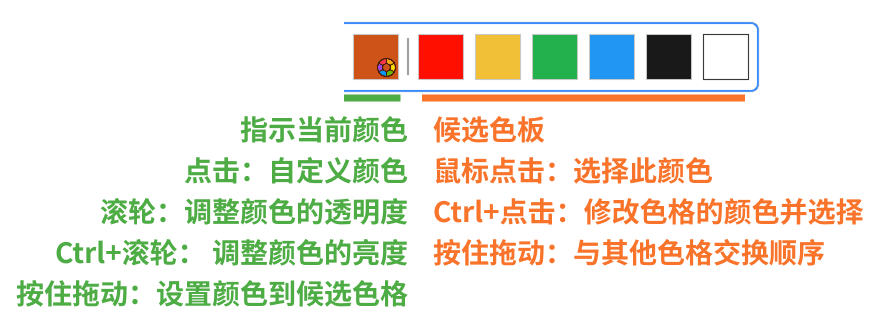
Adjust Palette Quantity and Layout
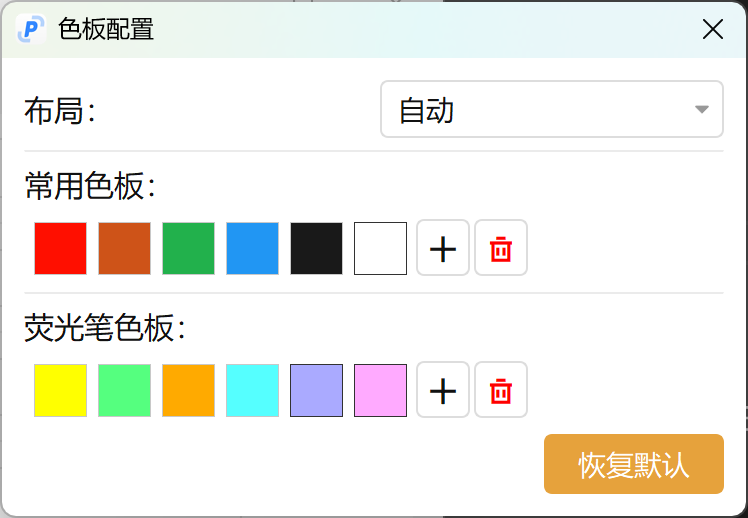
- If you want to adjust the number of candidate color grids, you can go to "Config" - "Annotation" - click the "Edit Palette" button to open more detailed settings.
- Drag a color grid to the delete button to delete the corresponding color grid.
Annotation Re-editing
By default, annotated content can be edited again (need to switch to the corresponding annotation mode). You can disable this feature here.
- Disable: Once the annotation adjustment is completed, it cannot be edited again.
- Enable: Can be edited again after annotation.
- Completely Disable: Cannot be adjusted or edited again after annotation. For example, when drawing a rectangle, the rectangle is fixed after the mouse is released and cannot be adjusted again. This option is used for scenarios requiring a large amount of annotation.
Quick Annotation Setting
During a screenshot, right-clicking with the rectangle/mosaic/eraser annotation tool can quickly set it to the range of the element. You can enable or disable this in this setting.
Pencil Cursor Type
Indicates the cursor type of the pencil tool. Options are:
- Cross and Dot
- Cross
- Dot
Max Pencil Width
The maximum width that can be set for the pencil tool, in pixels.
Remember Last Used Tool for Pin Annotation
Automatically select the last used tool when opening the annotation toolbar on a pin.
Remember Last Used Tool for Screenshot Annotation
Automatically open the last used annotation tool after selecting the screenshot area.
Serial Number
Set parameters related to the serial number tool.
Modify Other Items When Deleting Serial Number
When the deleted serial number is an intermediate item, whether to modify the values of subsequent serial numbers. For example, if the item with serial number 2 is deleted, whether the values of subsequent serial numbers are decreased by 1.
Pencil
Set parameters related to the pencil tool.
Pencil Drawing Mode while Holding Shift
The drawing mode of the pencil tool when holding the Shift key. Options are:
- Free Angle Line
- Snap to 45 Degree Line
- Snap to 30 Degree Line
- Snap to 15 Degree Line
- Snap to 10 Degree Line
- Snap to 5 Degree Line
Smooth Stroke
Whether the stroke of the pencil tool is smooth.
Text
Word wrap mode. Automatically wrap when text input exceeds the screenshot border or pin border. You can set whether to enable automatic word wrap (enabled by default, changes only take effect for new annotations).
- No Wrap: Do not wrap automatically, users need to wrap manually, otherwise it will exceed the border.
- Wrap at Any Position: No restriction on wrap position, wrapping may occur in the middle of a word.
- Wrap at Word Boundary or Any Position: Wrap position is restricted to word boundaries. If a word is too long, it will wrap in the middle of the word.
Eraser
Set parameters related to the eraser tool.
Enable Re-editing for Eraser
Whether to enable re-editing for the eraser tool. If enabled, you can edit the erased range again after erasing (only supports box selection mode).