 PixPin
Appearance
v3.0.8.0 Release Notes
March 27, 2026
PixPin 3.0 is a major milestone release with comprehensive upgrades, designed to deliver a more efficient and smoother screenshot and editing experience. In this version, we fully redesigned the UI with a more modern and clean visual style. We also officially integrated AI large models, significantly improving translation quality and text recognition performance. The new version additionally introduces a redesigned image save dialog with support for more formats, as well as a draggable desktop floating icon. On top of that, version 3.0.8.0 also fixes several known issues from previous builds.
Download
Windows
macOS
What's New
3.0.8.0
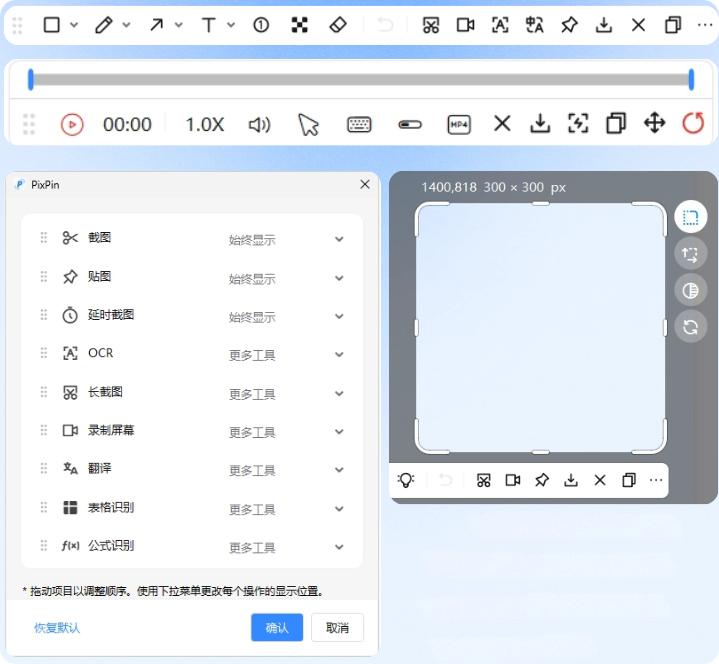
A Brand-New Interface
We fully redesigned the UI. The new design language brings a more modern and cleaner visual style, so you can enjoy an excellent visual experience while staying productive.
You can now customize the selection border width and color in Config - Appearance - Screenshot. (If you want to restore the old blue border, the color code is #3388ff.) 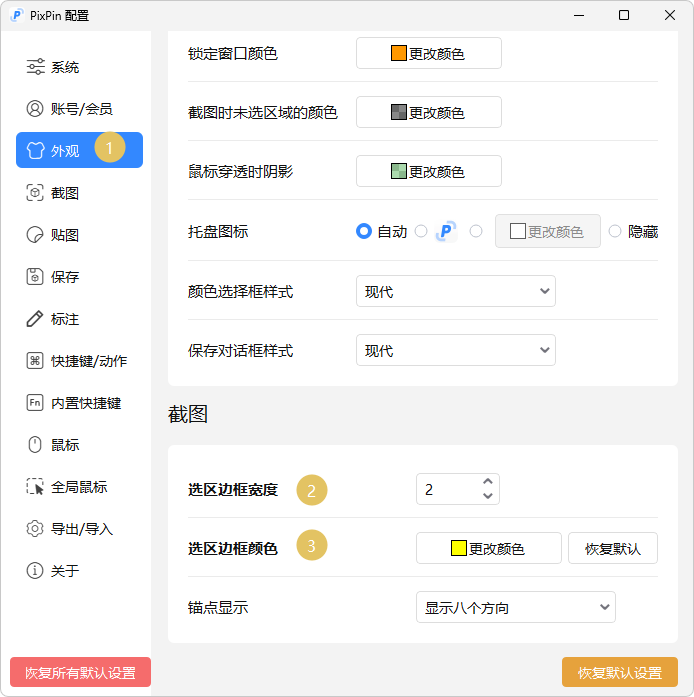
If all annotation buttons are hidden or missing, you can reopen the adjustment interface in Config - Annotation - Annotation Button Layout. 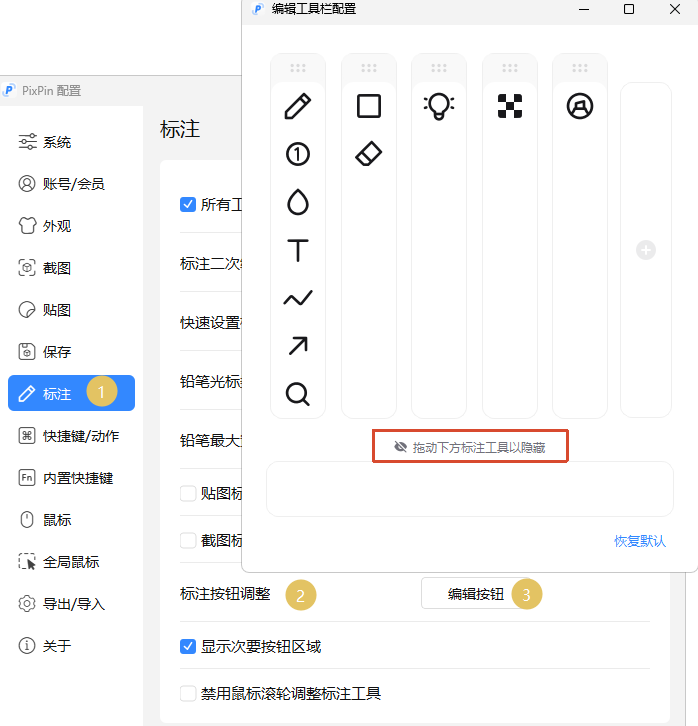

Stronger Text Recognition
The newly upgraded text recognition algorithm improves accuracy and can recognize Simplified Chinese, Traditional Chinese, English, and Japanese at the same time.
Stronger Image Saving
The newly designed save interface adds support for AVIF and PDF formats, can estimate output file size, and lets Pro members preview encoding results.
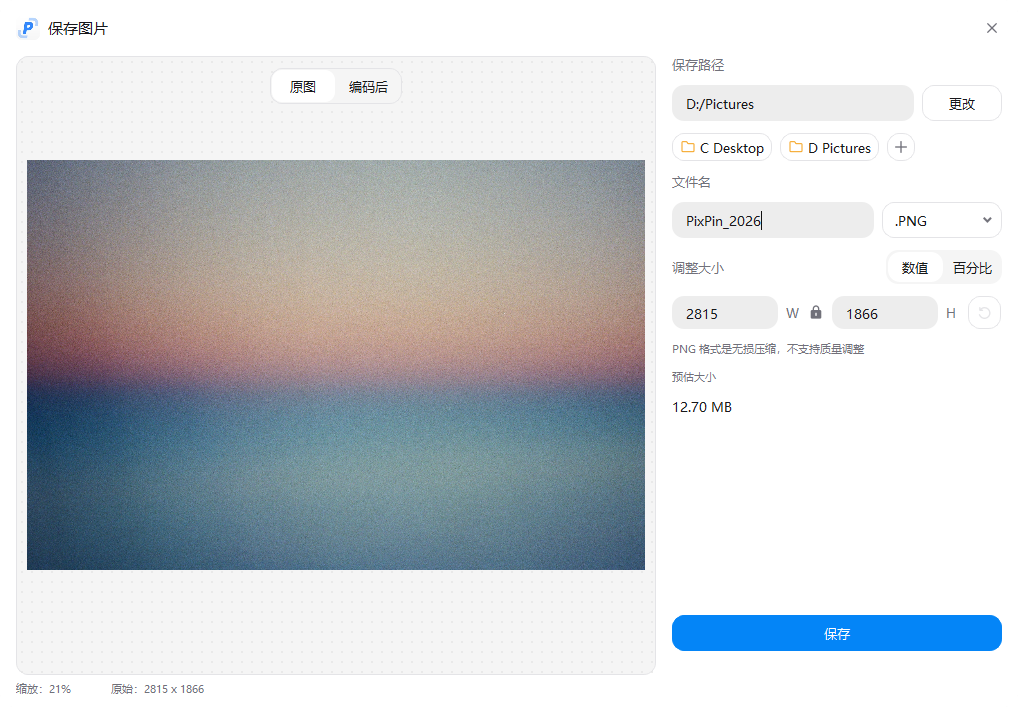
You can switch back to the legacy save dialog style anytime in Config - Appearance - Appearance - Save Dialog Style. 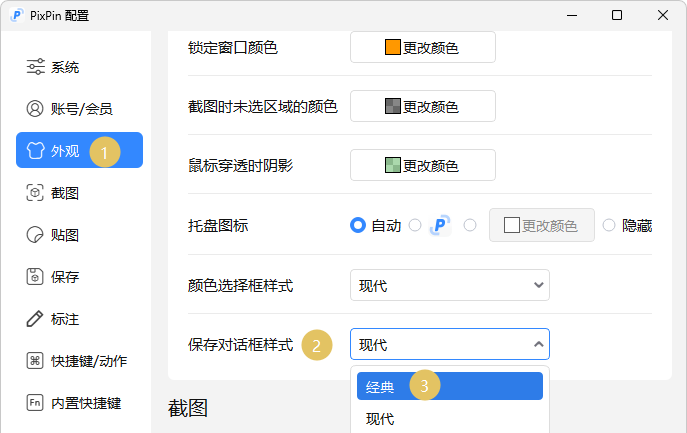
AI Translation
We have officially integrated AI large models, greatly improving translation quality. It supports automatic translation between multiple languages and provides more accurate, natural translations based on context, making it much easier to read foreign-language materials.
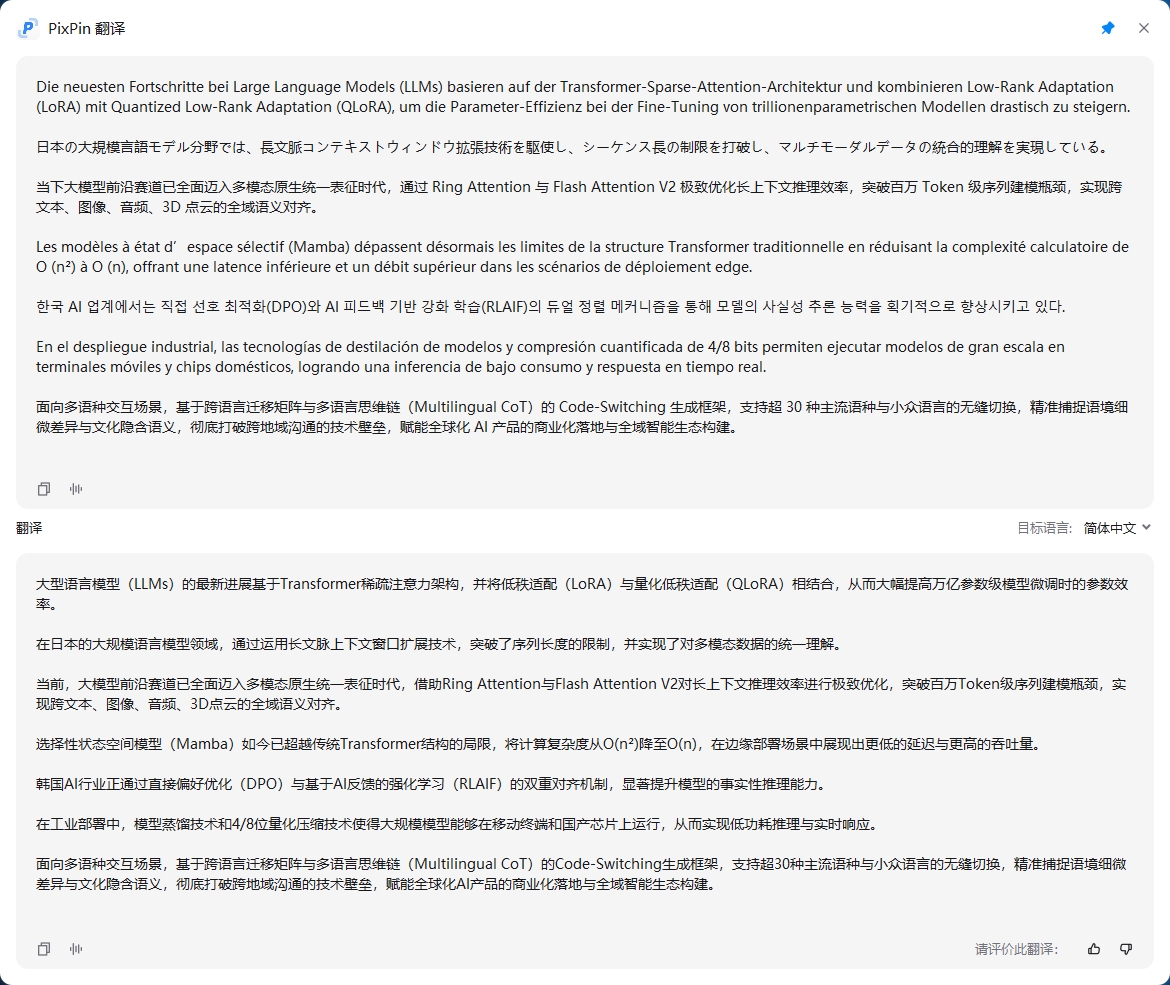
You can switch back to the legacy translation mode (image-to-image) anytime in Config - System - Translation - Translation Mode. 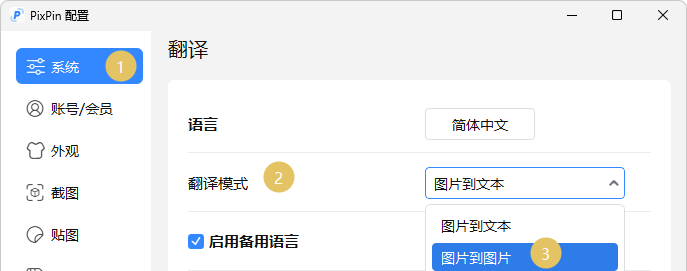
Desktop Floating Icon
With the desktop floating icon, you can click to trigger quick actions. You can also drag images or text directly onto the icon to pin them, enabling a full mouse-only workflow.

If you closed the floating icon and want to reopen it, go to Config - System - System - Show Desktop Toolbar. 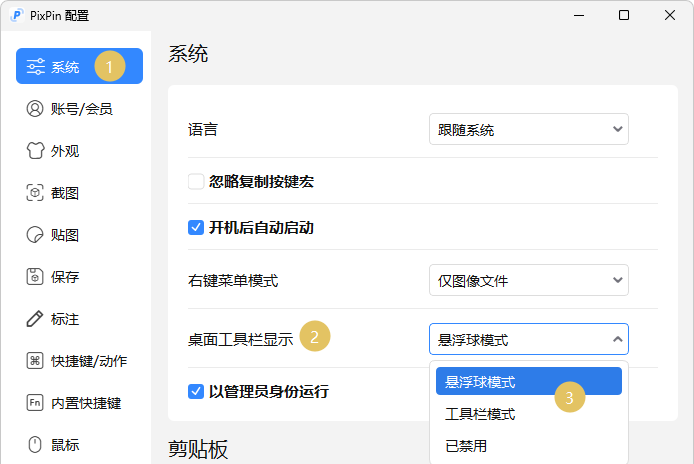
Note: To use drag-to-pin and other interactive floating-icon features, due to Windows process protection limitations, please go to Config - System and uncheck "Run as administrator". 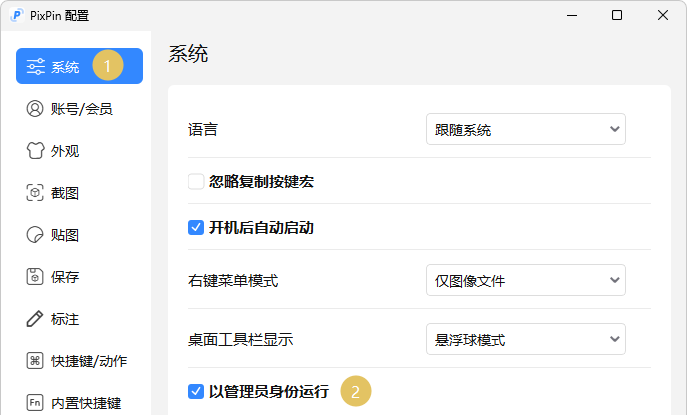
- [Feature] Added shortcut operations to the post-recording preview page:
Spaceto pause,Left/Rightto switch frames,Home/Endto jump to the first/last frame. - [Feature] Added a "Clear All Annotations" button to the Eraser annotation tool.
- [Feature] Added "Hide in Fullscreen" and "Hide During Screenshot" options to the floating icon menu, both enabled by default.
- [Feature] Added a divider in the translation dialog and support for manually adjusting source/translation panel sizes.
- [Feature] Added a "Copy Image Path" button to the save dialog.
- [Improvement] The text recognition dialog is now resizable.
- [Improvement] Improved WebP export speed after screen recording.
3.0 Upgrade Troubleshooting FAQ
If you run into issues when first upgrading to version 3.0, please check the following common troubleshooting answers:
1. What should I do if Windows 7 installation or startup reports missing DLL files?
Some older Windows 7 systems may encounter missing dependency errors due to underlying platform differences:
- Missing
api-ms-win-core-path-l1-1-0.dll: Click here to download the open-source patch (x64). Place it directly in the folder where PixPin.exe is located (do not put it in system directories to avoid side effects), then restart PixPin. - Error says
ADVAPI32.dllcannot be located: This indicates your DLL version is too old and lacks required functions. Please try manually installing Microsoft's official high-risk fix package.
2. Why does macOS 12/13 become unresponsive or crash on launch?
macOS 12 and 13 lack some low-level architecture support required by the 3.0 major version, which can cause startup failure or severe instability. If upgrading your OS is not convenient, please go to the historical versions page and continue using the classic 2.4.9.6 version.
3. Why does pinning sometimes feel laggy after upgrade?
In most cases, this is because the new version introduced a low-level global OCR auto-parsing and text-selection module. If your device is resource-constrained and you experience occasional lag, go to Config - Pin and uncheck "Default Text Selectable" to reduce performance pressure.
4. Where did the "serial number increment/decrement" button in Annotation go?
To keep the toolbar cleaner and more focused, the new version removed the globally attached increment/decrement button. The updated workflow is: click normally on the canvas to create a serial marker, then click the + or - symbol at the top-left of that serial number for targeted value adjustment.
5. How can I completely disable auto-save during screenshot?
If you do not want a local original file generated after every screenshot, go to Config - Save - Auto Save and uncheck this option.