
Extract Screenshot Text with Offline OCR
Use PixPin's offline OCR to copy text from screenshots, recognize nine languages, and select text directly from pinned images without uploading files.
 Workflow
When you encounter a QR code on your computer screen or inside an image file, there is no need to take out your phone. By using a quick screenshot shortcut or pinning an image to your desktop, you can perform QR code recognition and barcode recognition directly on your PC. This guide details practical methods for scanning QR codes on a computer, covering active screen captures, local image files, industrial barcodes, result actions, and troubleshooting tips.
Recognizing QR codes on a PC generally falls into two scenarios: reading a code actively displayed on your monitor, or extracting a code stored inside a saved image file. PixPin also supports industrial barcodes found on logistics labels and warehouse stickers.
To read a QR code actively visible on your monitor:
Q to toggle recognition on and off.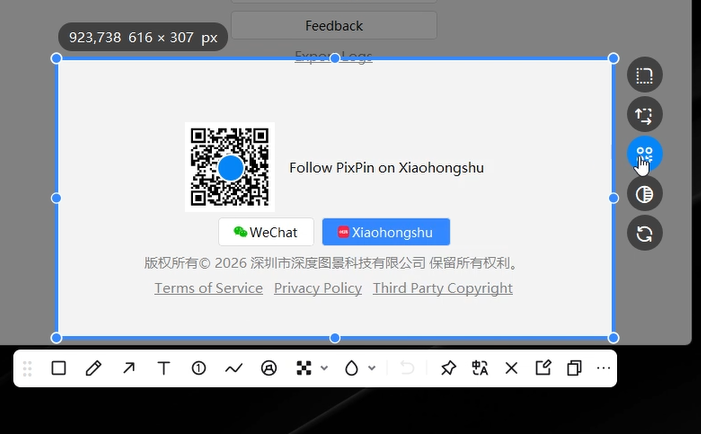 PixPin detecting and scanning a QR code on a PC screen
In Configuration > Capture > QR Code Detection Mode, PixPin offers four modes (set to Automatic by default):
| Detection Mode | Trigger Behavior and UI Presentation | Best For |
|---|---|---|
| Disable | Turns off QR code detection completely during screenshots. | Clean screenshots when you do not need code scanning. |
| Manual | After selecting an area, press Q or click the button in the upper right corner to activate. A blue dot indicates detected codes; hover over the dot to see details. |
Occasional scanning, preventing unwanted visual indicators during daily captures. |
| Automatic (Default) | Automatically shows a blue dot over detected codes; hover to inspect content. Press Q or click the button to dismiss. |
Everyday balance between standard screenshots and quick code access. |
| Direct Display | Automatically pops up the result card with decoded text and links as soon as a code is detected. Press Q or click the button to dismiss. |
High-frequency workflows where you frequently extract code data or open URLs. |
When set to Automatic or Direct Display, a control button appears in the upper right corner of the capture box whenever a code is detected. Clicking that button or pressing Q immediately dismisses the recognition overlay for a clean capture.
Once a QR code is detected and the result card appears, you can perform the following actions:
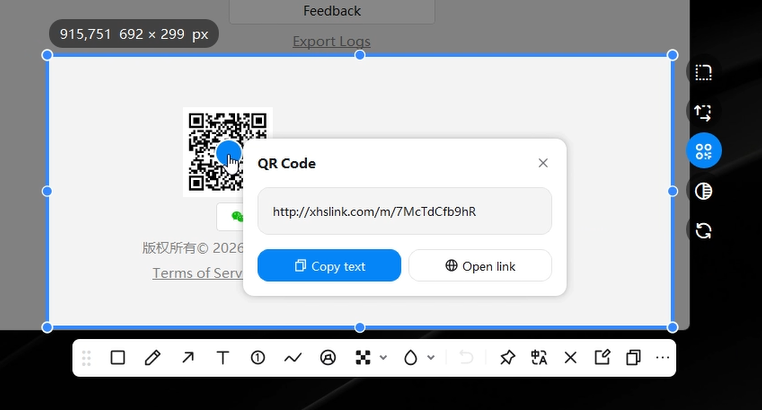 View and copy QR code recognition results in PixPin
Q or click the upper-right button to clear the overlay.If you need to scan a QR code from an image file saved on your computer, use PixPin’s desktop pinning feature:
Shift+D, or right-click the pinned image and select Recognition > QR Code Recognition.If the result contains a URL, you can click to launch it directly in your browser.
Some invoices, spec sheets, or promo banners contain several QR codes in a single image. PixPin handles multiple codes seamlessly:
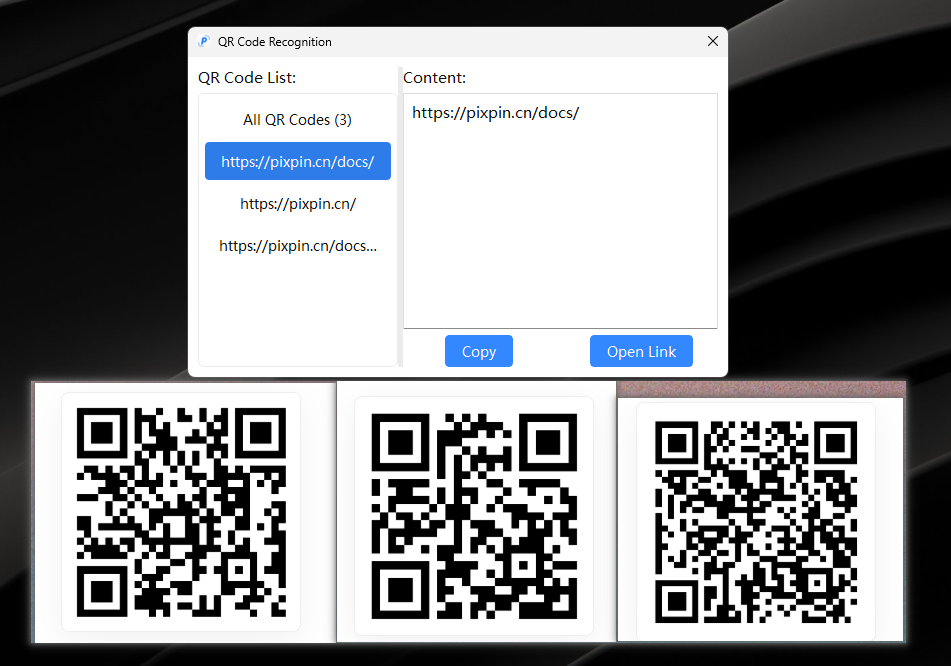 Recognizing multiple QR codes in a single image with PixPin
In addition to standard QR codes, office and inventory workflows often require scanning 1D and 2D industrial barcodes. PixPin distinguishes between standard QR codes and industrial barcodes:
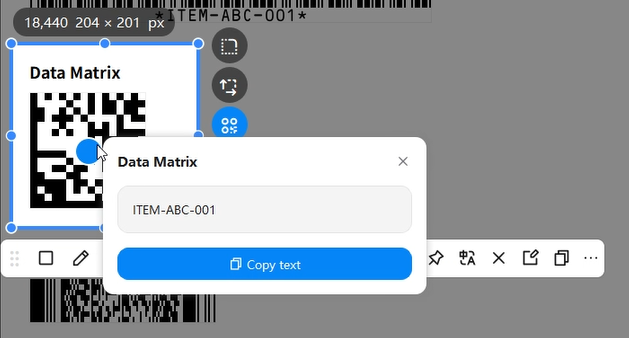 Recognizing industrial barcodes on a computer with PixPin
| Feature | Standard QR Code Recognition | Industrial Barcode Recognition |
|---|---|---|
| Availability | Free (Available to logged-out, free, and member accounts) | Member exclusive |
| Common Formats | Standard QR Code and variants | Code128, EAN13, UPCA, Code39, DataMatrix, PDF417, etc. |
| Common Scenarios | Website logins, group chats, business cards, payment links | Shipping labels, warehouse shelf tags, retail barcodes, serial plates |
| Entry Point | Screenshot selection (Q) or pinned menu (Shift+D) |
Same as QR codes; automatically recognized in selection or pin mode |
If a QR code or barcode is clearly visible on your screen but pressing Q yields no response, or the pin menu reports no code found, check these four factors:
Configuration > Capture > QR Code Detection Mode and verify it is not set to Disable. When disabled, the Q shortcut will not trigger recognition.Yes. With PixPin installed, simply press your screenshot shortcut and frame the QR code on your monitor. Depending on your configuration, the decoded content appears automatically or can be viewed with Q, eliminating the need for a phone.
To scan what is currently displayed on your monitor, use the standard screenshot selection. To extract codes from a saved image file, pin the image to your desktop first, then press Shift+D or choose Recognition > QR Code Recognition from the context menu.
Standard QR code recognition is completely free for all users. Industrial barcode scanning (such as Code128 and EAN13 on logistics packages and warehouse tags) is a member-exclusive feature.
Pin the image to your desktop, then press Shift+D or right-click and choose Recognition > QR Code Recognition. PixPin opens a consolidated list window showing all detected codes, allowing you to copy or open each link individually.
When extracting QR code and barcode information on a PC, select your workflow based on where the code is located:
Q. Customize detection sensitivity in Configuration > Capture.Shift+D for instant single-code cards or multi-code lists.Ready to streamline your workflow? Download PixPin to experience instant PC screen capture and phone-free QR scanning. For additional capture and annotation techniques, explore the PixPin Static Capture Documentation and Pinning Guide.
Related posts
 Workflow
Use PixPin's offline OCR to copy text from screenshots, recognize nine languages, and select text directly from pinned images without uploading files.
 Capture Guides
Learn how to take a screenshot on a Windows 11/10 PC or Mac. Compare the main shortcuts, steps, save locations, and PixPin capture tools.
 Capture Guides
Learn how to pin a screenshot or image on screen with PixPin, resize it, keep it always on top, lock it, or restore it from pin history.