
How to Take a Screenshot on a Computer: Windows and Mac Shortcuts
Learn how to take a screenshot on a Windows 11/10 PC or Mac. Compare the main shortcuts, steps, save locations, and PixPin capture tools.
 Capture Guides
If your scrolling screenshot is not working, is misaligned, or has missing content, first narrow the selection to one static, scrollable area and check whether the preview grows as you scroll. A capture that cannot be stitched at all needs different checks from one that produces an image with repeated, misaligned, or missing sections. Follow the symptoms below.
Change one condition at a time, then capture again to help identify whether it is related to the problem. For a full explanation of the toolbar, see the scrolling capture documentation.
Try again in this order:
If the area itself cannot scroll, automatic scrolling cannot move its content. If the mouse wheel does not work but dragging the scrollbar does, try manually dragging the scrollbar during the scrolling capture.
Watch the preview window after starting scrolling capture. The green matching indicator means the current view has been matched successfully; the preview should keep growing as valid scrolling continues.
If the content moves but the long-image preview does not grow, stitching has not continued. Check dynamic content, repetitive backgrounds, and the selection boundaries again before trying to scroll.
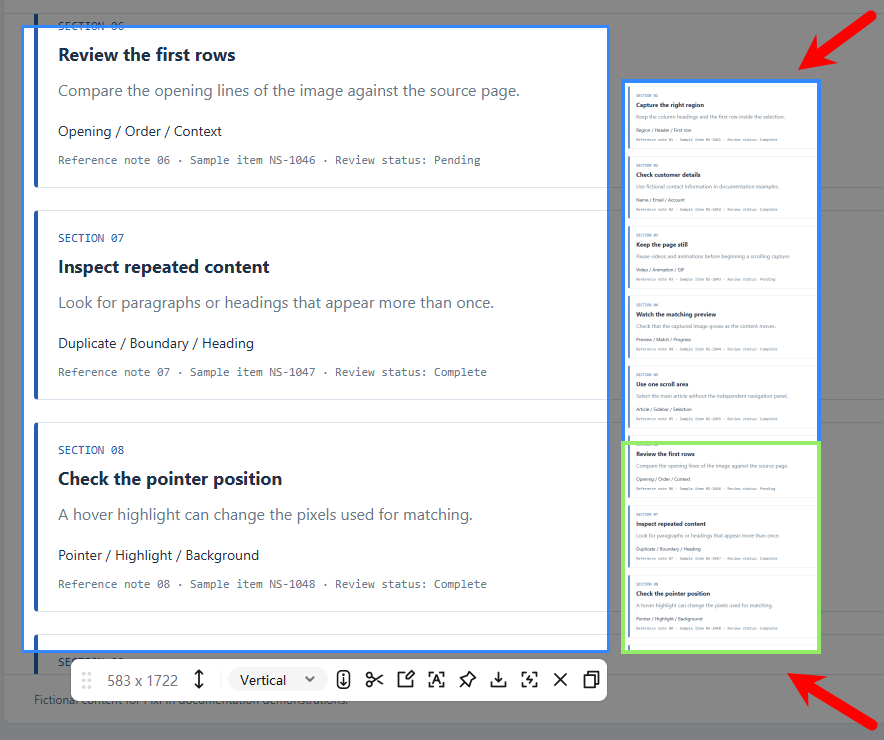 PixPin scrolling screenshot preview with a green matching indicator
The blue box on the right contains the long-image preview. The green box marks where the current view matches the long image. Watch both the matching indicator and the preview length as you scroll.
Yes. Solid backgrounds and large repetitive layouts may lack the visual differences needed to determine the scrolling position, making matching more likely to fail. Adjust the capture area to include more distinctive static content, and avoid letting blank or repetitive areas occupy most of the selection.
In practice, scrolling speed has a relatively small effect, and faster scrolling usually still stitches correctly. If a problem occurs, you can slow down to see whether the preview starts growing again. Also check dynamic content, repetitive backgrounds, and the selection itself.
When a capture includes two independent scrolling regions, the mouse wheel usually moves only one of them. Content in the other region stays still and may be stitched into the long image repeatedly, causing the same line of text to appear several times.
When selecting the area again:
A small amount of fixed content does not necessarily cause failure, but a large proportion is more likely to affect matching.
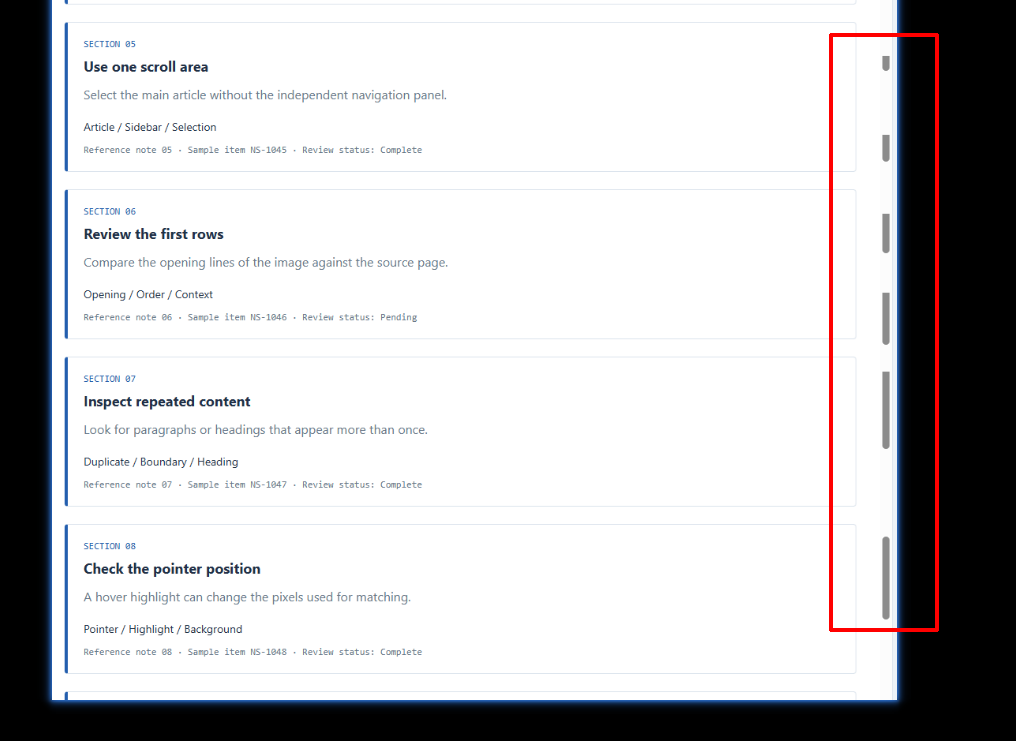 Repeated scrollbars in a long screenshot when the scrollbar is included in the capture area
The scrollbar inside the red boxes has been stitched into the long image multiple times. Exclude it from the capture area when you make a new selection.
Videos, GIFs, and animations continually change the view and can interfere with matching. Pause them before starting, or exclude them from the selection.
Some webpages, WeChat notes, Feishu multidimensional tables, and email interfaces change their background color or brightness when the mouse hovers over them. If misalignment or matching failures occur alongside these changes:
This method is also described in the official scrolling capture troubleshooting notes, which document related scenarios in PixPin 3.5.2.2. If the same symptoms occur in another version, you can check these conditions there too.
If you have reached the bottom but the content you need is still outside the capture box:
For vertical captures, move up or down; for horizontal captures, move left or right. When finished, check both ends of the long image to confirm that all required content is included.
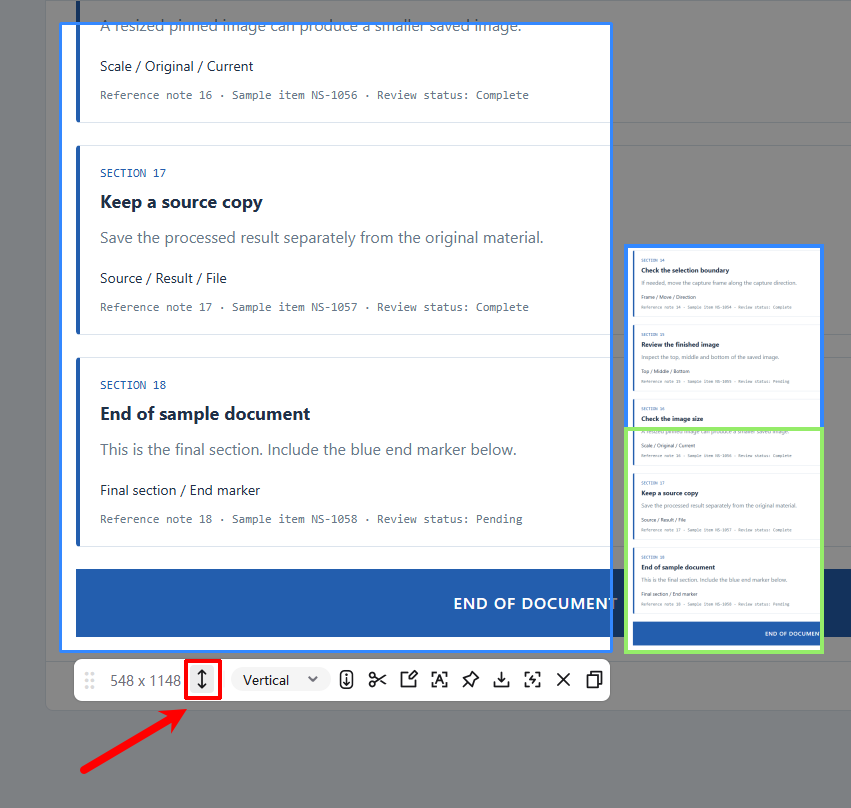 Move button on the PixPin scrolling capture toolbar and a preview of the bottom content
The red arrow points to the 「Move」 button. Use it to move the selection along the capture direction and include bottom content outside the box.
By default, PixPin reduces the display size of a pinned image when it exceeds the screen. If you save the 「Current Image」 from a scaled-down pin, the saved dimensions depend on the current scale and may be smaller than the original long image.
When saving from a pinned image:
If you save directly from the editor after completing a scrolling capture, the image is usually saved at 100% scale, so you do not need to reset a pin’s size manually. The scale check above mainly applies when saving from a pinned image.
For the difference between 「Current Image」 and 「Original Image」, see the pinning documentation.
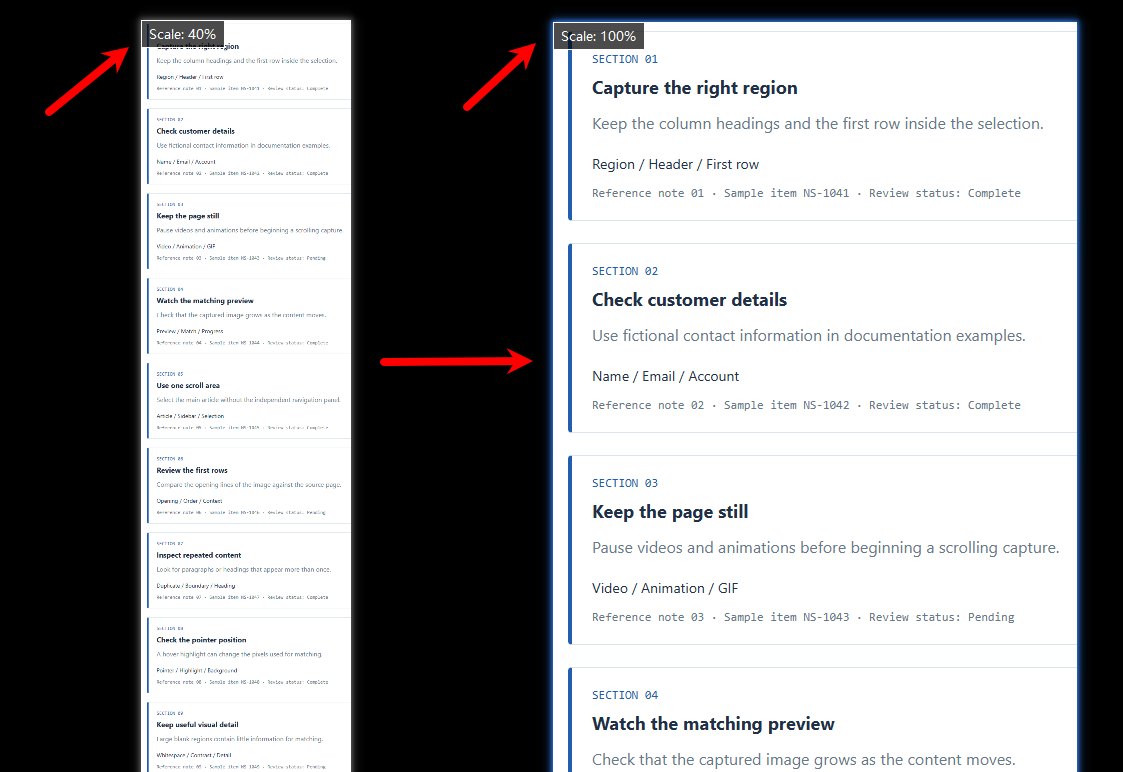 The same pinned long screenshot displayed at 40% and 100% scale
The left image is at 40% scale; the right is at 100%. Restore the original size before saving from the pin.
If a scrolling screenshot preview shows black borders or large black areas on Windows 10, first record your PixPin and Windows versions. The 3.4.1.3 beta release notes record a fix for black blocks that could appear on some versions of Windows 10. If you are using an older PixPin version, update and test again. If the issue persists, provide the information in the next section.
Collect the following information to help reproduce the issue:
Send the information to [email protected]. If the screen content or logs contain private information, review what needs to be hidden before sending so troubleshooting can continue for your specific scenario.
Capture regions separately when they need to be scrolled independently. On Windows and macOS, the mouse wheel usually affects one area at a time; the other area can be stitched repeatedly while it remains still. If both regions can scroll in sync, you can try capturing them together, then check the preview and final image.
Successful generation alone does not confirm completeness. Before and after saving, check the beginning, end, repeated paragraphs, and stitched joins for missing or misaligned content.
If a scrolling screenshot is not working, first rule out dynamic content, excessive fixed or repetitive areas, and mouse hover effects. Then confirm that the preview grows as the content scrolls. For misaligned, repeated, or cut-off scrolling screenshots, adjust the conditions, capture again, and inspect both ends and the stitched joins in the final image.
When you are ready to start using or update the software, download PixPin and test again using the steps above.
Related posts
 Capture Guides
Learn how to take a screenshot on a Windows 11/10 PC or Mac. Compare the main shortcuts, steps, save locations, and PixPin capture tools.
 Capture Guides
Learn how to pin a screenshot or image on screen with PixPin, resize it, keep it always on top, lock it, or restore it from pin history.
 Capture Guides
Learn how to translate a screenshot or text in an image with PixPin on Windows and macOS. This guide covers shortcuts, toolbar and pinned-image methods, translation modes, target languages, and API key setup.