
How to Take a Screenshot on a Computer: Windows and Mac Shortcuts
Learn how to take a screenshot on a Windows 11/10 PC or Mac. Compare the main shortcuts, steps, save locations, and PixPin capture tools.
 Workflow
Extracting text from screenshots has become a frequent part of everyday work. Whether you need a sentence from a chat, product specifications from an image, or instructions from a document screenshot, typing everything again by hand can seriously slow you down.
PixPin’s text recognition feature solves the common problem of having text inside an image that you want to copy directly. It supports offline OCR without depending on an internet connection and can recognize multiple languages. Because recognition can happen locally, it is also better suited to screenshots containing private information, work materials, or internal content. Even more conveniently, when an image is pinned to your screen, you can select and copy text directly from that pinned image without saving it, opening it elsewhere, or performing any additional processing first.
When people first encounter OCR, they often think of simply extracting all the words from an image. In real workflows, the most common needs tend to be more specific:
If you frequently switch between screenshots and copied text, PixPin OCR is a good fit. It does more than recognize words in an image: it lets you copy and continue working immediately after taking a screenshot, without opening another tool or switching to another page.
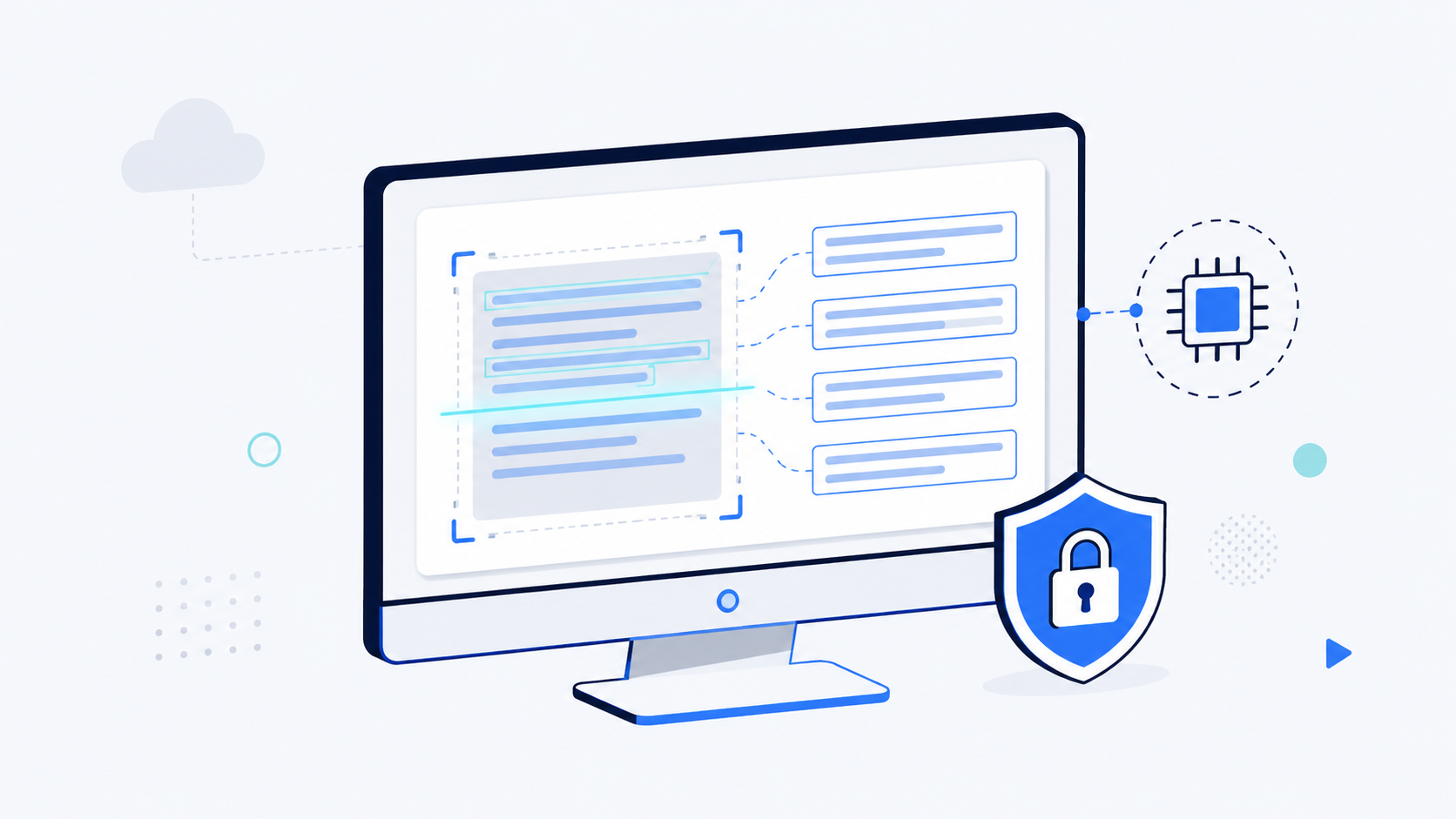 Offline OCR helps protect private information
When people search for a screenshot text recognition tool, recognition accuracy is often their first concern. In real use, however, offline recognition matters just as much.
PixPin supports offline OCR, which means it can recognize text locally without uploading an image to an online service and waiting for a response. The benefits are straightforward:
Offline OCR helps protect private information
When people search for a screenshot text recognition tool, recognition accuracy is often their first concern. In real use, however, offline recognition matters just as much.
PixPin supports offline OCR, which means it can recognize text locally without uploading an image to an online service and waiting for a response. The benefits are straightforward:
For people who regularly conduct design reviews, handle customer-support conversations, organize product information, or maintain a knowledge base, offline OCR removes extra handoffs and gives them more control when working with sensitive screenshots.
PixPin text recognition supports multiple commonly used languages, making it suitable for multilingual interfaces and international materials. Selecting multiple recognition languages for the same task is a PixPin Pro feature. The currently supported languages are:
Simplified Chinese, English, Japanese, Traditional Chinese, Korean, French, German, Spanish, and Portuguese.
This means you can recognize text from Chinese documents, English webpages, Japanese interfaces, Traditional Chinese content, or Korean screenshots with the same tool. It is especially useful for anyone organizing international product materials, information from overseas websites, or multilingual communications.
If you simply want to copy text out of an image, follow this workflow:
 Text Recognition button
You can copy and continue processing the text as soon as recognition finishes, without switching back and forth between multiple tools.
PixPin’s pinned images already work well for temporary reference, side-by-side instructions, and keeping information visible above other windows. After taking a screenshot, you can pin it to your desktop and refer to it while you work.
When a pinned image contains text, PixPin lets you select and copy that text directly from the image.
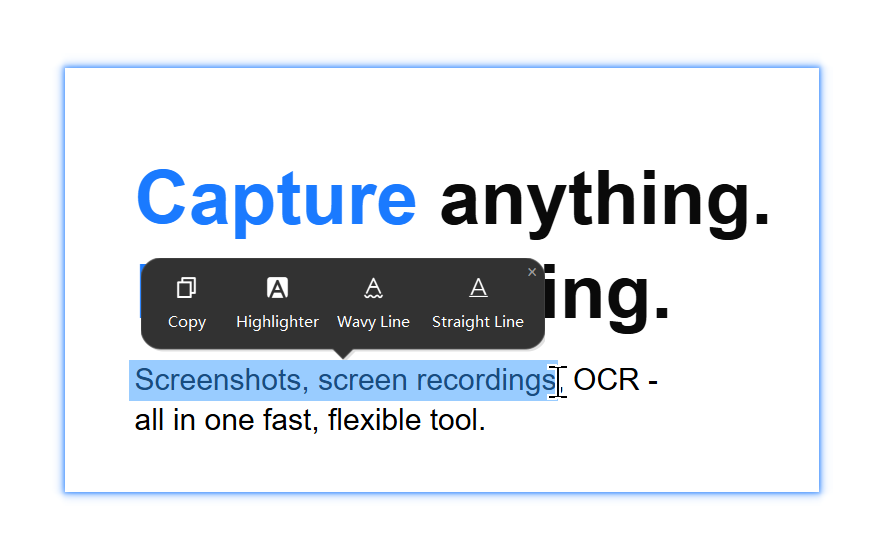 Selecting image text directly from a pinned image
Suppose you pin an image of the instructions beside an application while following each step. If you need to copy a command, path, or field name, selecting the text directly from the pinned image is much faster than typing it again.
Chat history, feedback, and customer replies are sometimes saved as screenshots first. When you need to organize that information later, copying key sentences directly from a pinned image is far more efficient than transcribing them by hand.
Product managers, operations teams, testers, and designers often need to share button labels, menu items, error messages, or field names from an interface. OCR on pinned images makes extracting this information a natural part of the workflow.
When a screenshot uses a language different from the one you are working in, selecting and copying text directly from the pinned image is smoother than moving between different webpages and tools. It also works well for quick archiving.
If you only need OCR for an occasional image, many online OCR services can do the job. But if your work constantly moves between taking screenshots, pinning images, copying text, and communicating with others, PixPin’s advantages become much clearer.
| Method | Best suited to | Key consideration |
|---|---|---|
| Online OCR | One-off text extraction from an image | Requires an upload, a page switch, and an internet connection |
| PixPin offline OCR | Copying text and continuing work immediately after a screenshot | A shorter process that fits everyday desktop workflows |
| Copying text directly from a pinned image | Referring to a screenshot while organizing its content | No additional transfer step is required |
Put simply, many tools work if you only need OCR for an occasional image. But if you want to continue working immediately after taking a screenshot, integrating OCR directly into screen capture and pinned images is much more efficient.
PixPin supports offline OCR, so text recognition can run locally. This is more convenient when you do not have a stable connection or prefer to process images on your own device. Because the image does not need to be uploaded to an external service first, offline OCR is also more suitable for screenshots of chat history, work materials, and other private information.
Offline OCR can perform recognition locally without uploading the image to an online service simply to extract its text. This approach is better suited to screenshots that contain sensitive information such as chat history, account details, internal documents, or customer communications.
PixPin supports Simplified Chinese, English, Japanese, Traditional Chinese, Korean, French, German, Spanish, and Portuguese, covering many common multilingual screenshot workflows.
Yes. PixPin lets you select and copy text directly from a pinned image. This integration makes it more convenient than tools that can recognize an image but do not fit directly into the rest of your workflow.
Screenshot text recognition and direct copying from pinned images are especially useful if you regularly organize research, read across languages, handle customer-support conversations, review product designs or requirements, create tutorials, or maintain a knowledge base.
OCR helps move information from a screenshot into the rest of your workflow more quickly. PixPin’s offline text recognition, multilingual support, and ability to select and copy text directly from pinned images cover this need from end to end.
If you often extract text from screenshots, interfaces, and pinned images, integrating OCR into your everyday screen capture workflow usually saves more time and feels more natural than relying on a separate online recognition service.
To adjust detected-text layout or punctuation, see the PixPin Pin settings. For available recognition languages, see PixPin multi-language text recognition.
Related posts
 Capture Guides
Learn how to take a screenshot on a Windows 11/10 PC or Mac. Compare the main shortcuts, steps, save locations, and PixPin capture tools.
 Capture Guides
Learn how to pin a screenshot or image on screen with PixPin, resize it, keep it always on top, lock it, or restore it from pin history.
 Capture Guides
Learn how to translate a screenshot or text in an image with PixPin on Windows and macOS. This guide covers shortcuts, toolbar and pinned-image methods, translation modes, target languages, and API key setup.