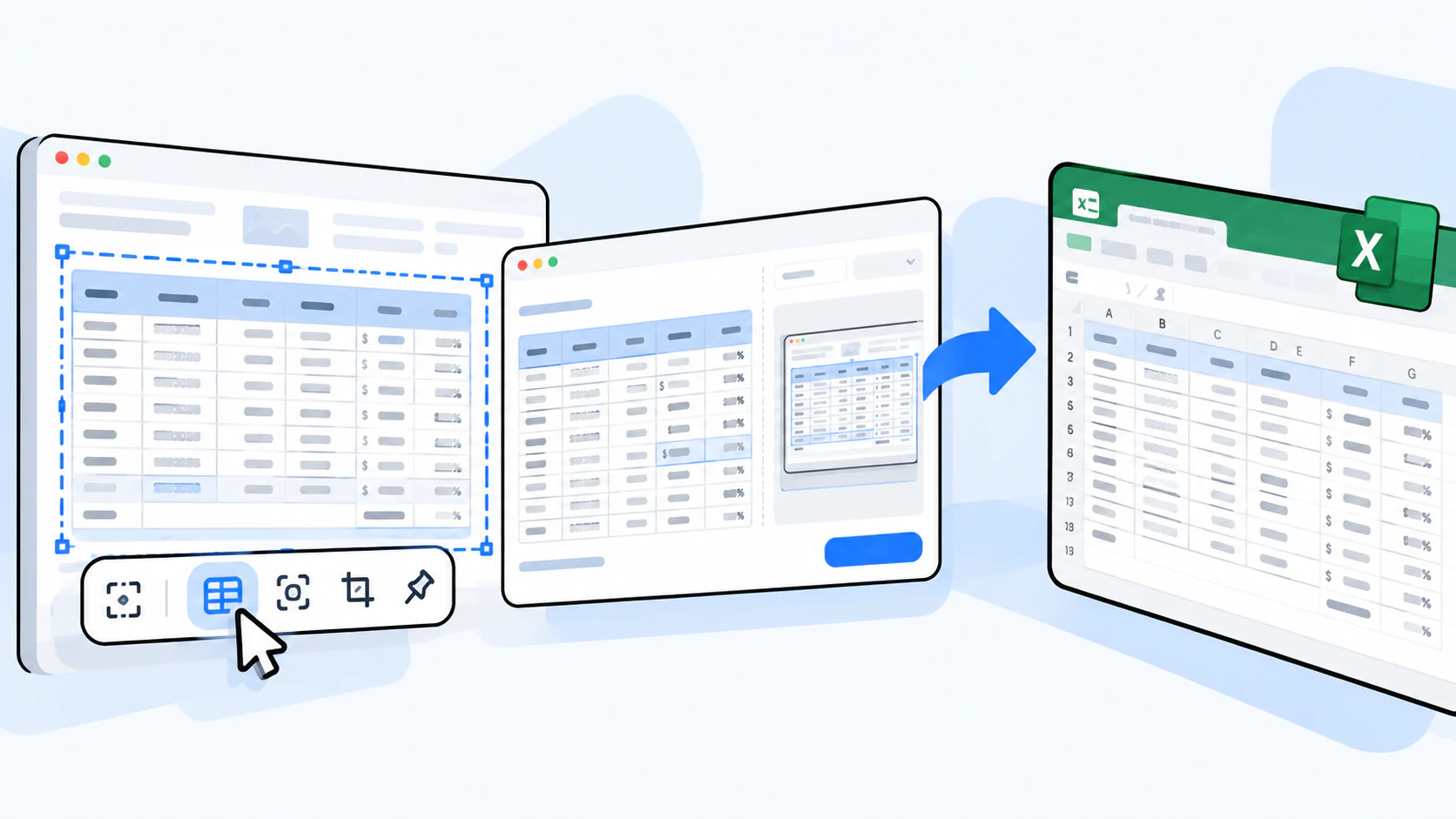
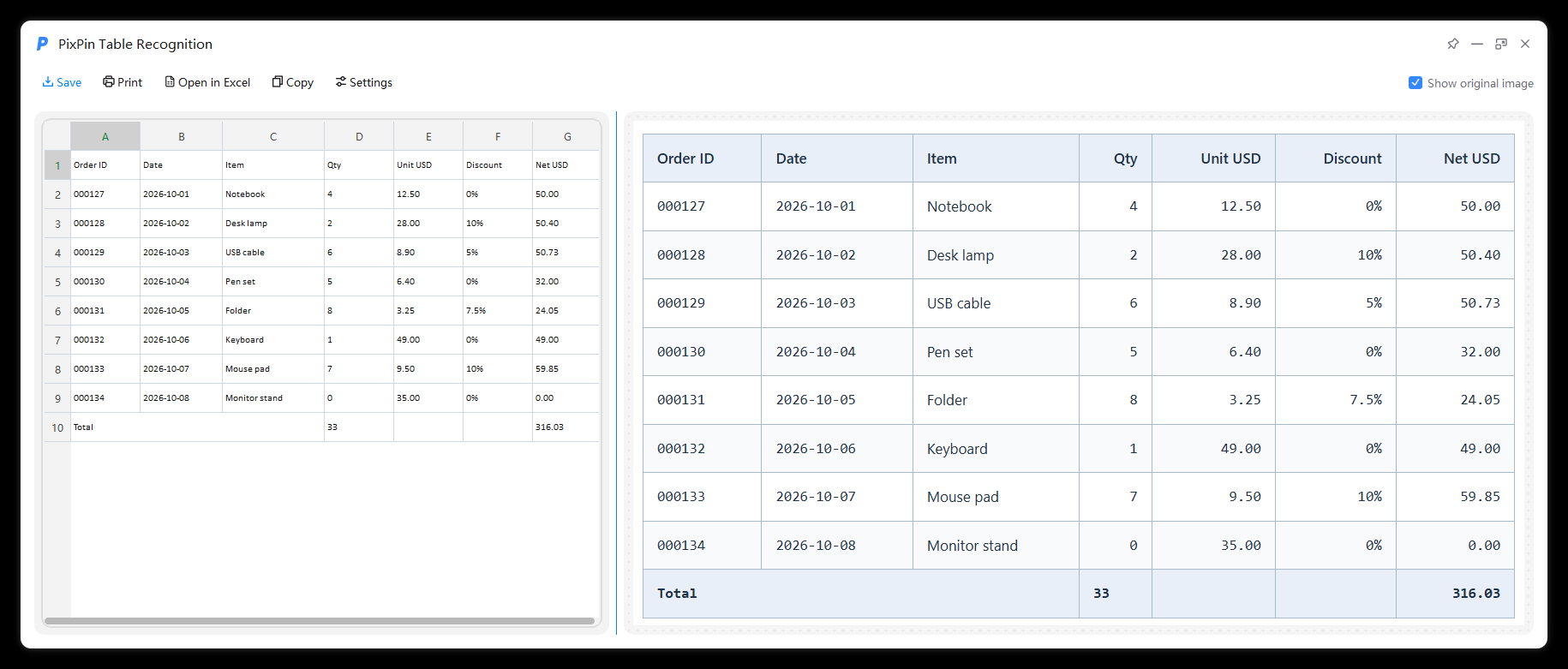
To convert a screenshot to Excel, use PixPin’s Table Recognition: capture a table from a webpage, document or chat screenshot, check the recognized data against the original image, then save it as an editable Excel file. Table Recognition requires a membership. After automatic recognition, you still need to check the data and the row and column structure.
- Capture an area that includes the complete table headers and data.
- Select Table Recognition on the capture toolbar, or press the default shortcut,
Shift+Q.
- Compare the recognized result with the original image.
- Correct any recognition errors in the cells and row and column structure.
- Save in Excel format, or use the option to open the result in your device’s default spreadsheet application.
- In the spreadsheet application, check the rows, columns, IDs, dates and numbers again, then save the final file.
Include all headers, the first and last rows, and the cell boundaries. Avoid cutting off text or numbers. A clear source image with a distinct row and column structure makes it easier to check the result.
On Windows, for example, press the default shortcut Ctrl+1 to start a capture, then select the table area. For an existing image, first copy the image or image file, then press the default shortcut Ctrl+2 to pin it to the screen. If you have changed the shortcuts, use your local settings.
The screenshots in this guide use an English order table with 7 columns, 8 order records and 1 totals row. Leading zeros, dates, decimals, percentages and zero values illustrate what to check.
During a capture, select Table Recognition on the toolbar or press Shift+Q to open the recognition window. For an image already pinned to the screen, use Table Recognition in its right-click menu. Choose the correct option: Formula Recognition is for mathematical formulas.
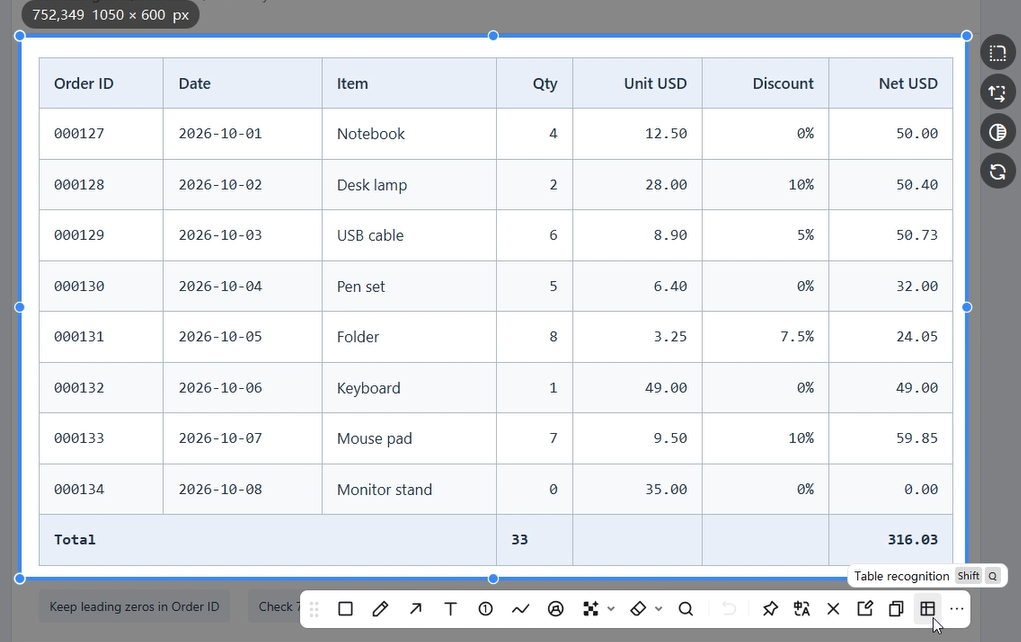 Table Recognition button on the PixPin capture toolbar with the Shift+Q shortcut hint
To recognize a table in a scrolling screenshot, open the editing window, then use its Table Recognition button. This option is documented in the PixPin 3.5.5.1 stable release notes.
Recognition time depends on the screenshot resolution and the complexity of its content. When it finishes, the table result appears on the left. Enable “Show original image” to display the source image on the right for comparison.
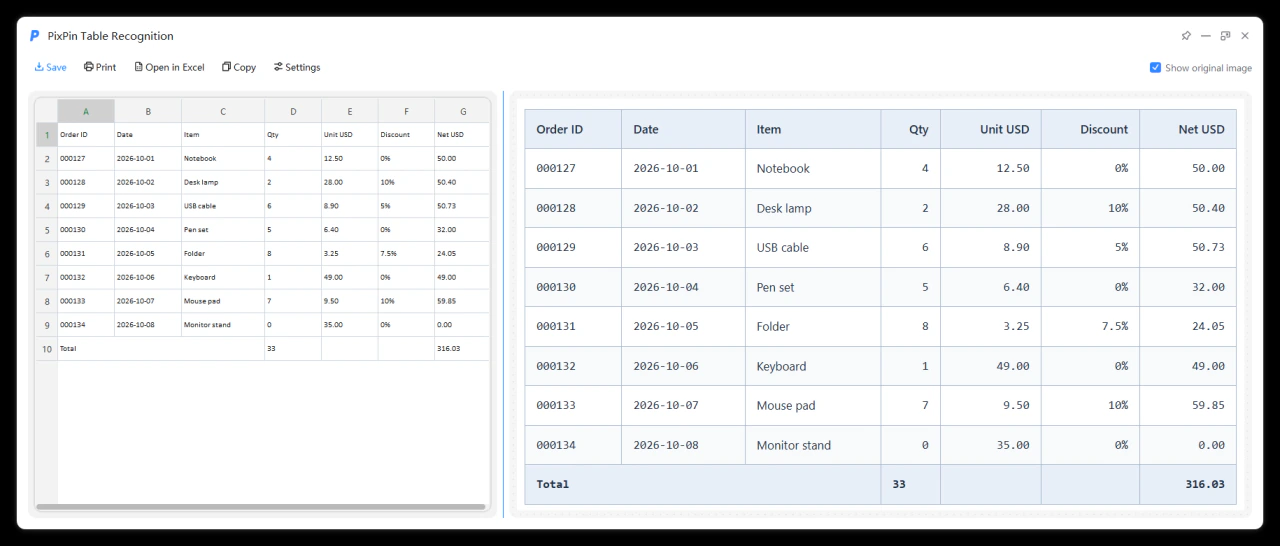 PixPin Table Recognition window with editable results on the left and the original order table on the right
Check the headers and the number of rows and columns first, then review each cell. The result window supports these actions:
- Double-click a cell to edit the recognized text or number.
- Delete extra rows or columns through the right-click menu.
- Merge or split cells to adjust the recognized structure.
After changing the structure, compare the entire row with the source again to confirm that each value is still in the correct column. For numbers, pay particular attention to decimal points, percent signs, minus signs and leading zeros. Check dates and IDs for recognition errors too. For multilevel headers or merged cells, verify which columns each header belongs to.
In the example, order IDs 000127 through 000134 should keep their leading zeros, and a discount of 7.5% must be distinguished from 75%. The last order has a quantity of 0 and an amount of 0.00; neither should be treated as blank.
Manual cell merges and splits cannot be undone with Ctrl+Z. To try again, close the recognition window and run Table Recognition again. Keep the original image before retrying, and check the newly recognized result again.
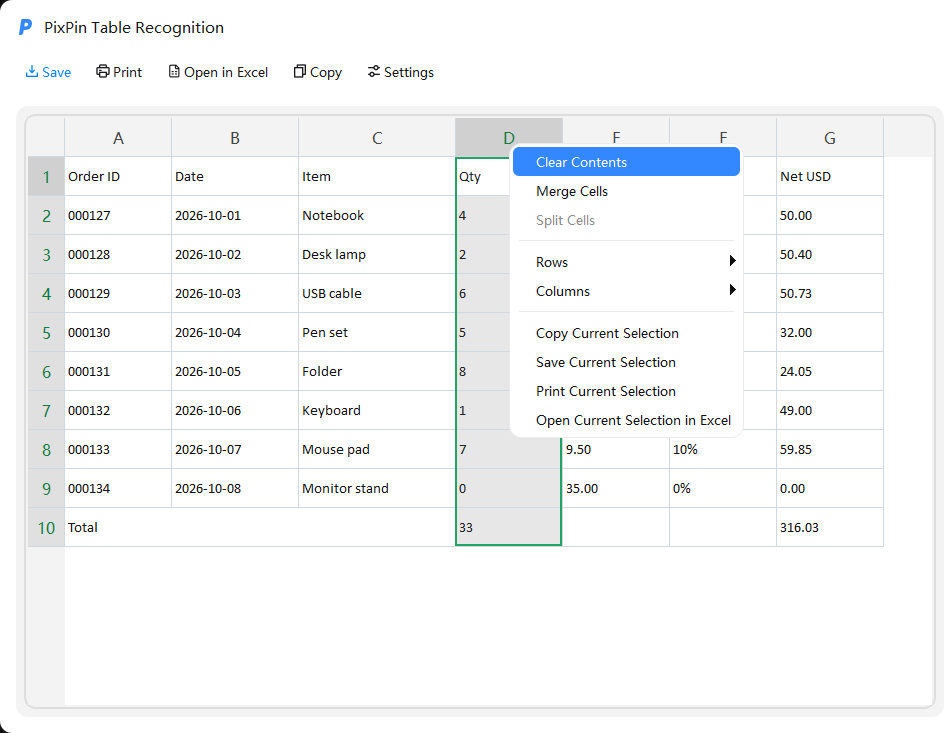 PixPin table result right-click menu with merge cells, split cells, and row and column actions
- Click the save option at the upper left of the window, labeled “Save” in the screenshot.
- Save the recognized result in Excel format to a folder of your choice.
- Open the saved file in Excel or WPS.
- Check the data, rows, columns and cell types against the original image.
- Save the corrected final file.
You can also use the option to open the result in a spreadsheet application, labeled “Open in Excel” in the screenshot. The result file opens according to your device’s default file association: Excel if it is associated with Excel, or WPS if it is associated with WPS. The option’s displayed name may change with the default application. This route creates a temporary file. To keep it, use “Save As” in the spreadsheet application and save it to your own folder.
In the spreadsheet application, also check that IDs retain leading zeros as text, dates are interpreted as intended, and quantities and amounts are numeric values that can be used in calculations. Some cells in the screenshot have green warning indicators; before calculating, check whether numbers have been stored as text. If the screenshot shows the results of formulas, Table Recognition cannot recover the original workbook’s formula logic from those values. Rebuild any formulas you need after checking the data.
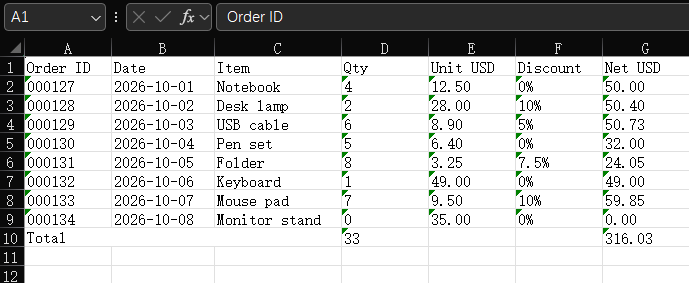 Recognized screenshot table opened in Excel, showing leading zeros in IDs, dates, amounts and the totals row
The example preserves leading zeros, dates, decimals and percentages. The total quantity is 33 and the total amount is 316.03 USD. Totals provide a quick check, but you still need to review each cell.
The recognition window lets you copy the result for pasting into Excel, a chat window or a pinned image. Different applications may accept different clipboard formats. After pasting, confirm that you have the table data or display image you need. For editing and calculations, check that the data is split into cells correctly.
Use the settings option at the upper left of the window to adjust how copied tables appear:
- Border styles: no borders, outside borders or all cell borders.
- Content alignment: automatic, left, center or right.
- Enable “Auto-close Pin After Recognition” if you want the original pinned image to close automatically after recognition.
These settings control presentation. Check the actual copied or pasted result after changing them.
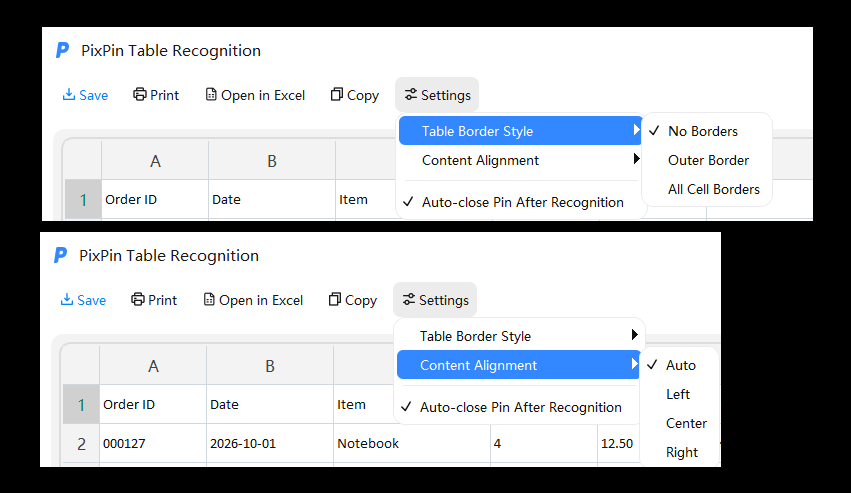 PixPin table copy settings for borders, content alignment and automatically closing the pinned image after recognition
Use the print option to choose a printer, check the preview, then print. The upper-right corner of the recognition window includes controls for keeping it on top, minimizing, maximizing and closing it, so you can arrange the source image, recognized result and spreadsheet application for comparison.
Text OCR mainly extracts text. Table Recognition also needs to preserve cells and the relationships between rows and columns. To import a table into Excel, use Table Recognition and check how the data is divided into columns.
Yes. Members can press Shift+Q during a capture or use the right-click menu on a pinned image to recognize a table and save it in Excel format. See the membership guide to Table Recognition.
Compare the result with the source image to determine which columns each header belongs to, then adjust the structure through the right-click menu. Check that the data is still assigned correctly afterward. See Step 3 for the undo limitation on merging and splitting cells and how to retry.
The result uses your device’s default file association. If spreadsheet files are associated with WPS, the result opens in WPS.
Check the target application and the clipboard formats it accepts. For editable data, save the result as an Excel file and open it, or check in Excel whether the copied result has been pasted as cell data.
A screenshot contains only visible content, not the original workbook’s formulas or references. Check the displayed data after recognition, then rebuild formulas as needed.
Once recognition, review and export are complete, use Excel or WPS to edit, sort and calculate. Prioritize row and column structure, leading zeros, dates and numeric types so recognition errors do not carry over into later analysis.
If you have not installed the app, download PixPin and follow the steps above. Table Recognition requires a membership; see the membership guide to Table Recognition before using it.