
How to Take a Screenshot on a Computer: Windows and Mac Shortcuts
Learn how to take a screenshot on a Windows 11/10 PC or Mac. Compare the main shortcuts, steps, save locations, and PixPin capture tools.
 Capture Guides
A scrolling screenshot is ideal for saving a long webpage, chat history, online document, or product page. Once the content extends beyond the current screen, a regular screenshot is no longer enough. A scrolling capture lets you save everything in one complete image instead.
Taking separate screenshots and stitching them together manually is time-consuming, and it is easy to miss part of the content. For many people, the real questions are straightforward: How do you take a scrolling screenshot on a PC? How can you capture an entire webpage? And how do you save a long chat conversation in one image?
A tool with scrolling capture, such as PixPin, makes the process much easier. You simply scroll the page normally while the tool detects overlapping areas and stitches them together. After a final crop and export, you have one continuous, complete screenshot that is easy to share.
For a very long webpage, wait until all page content has loaded before you begin. For chat history, close any pop-ups or overlays that could interrupt scrolling to improve the success rate.
Standard screenshot tools work well for the visible area of the screen, but several problems appear as soon as the content extends beyond it:
| Method | Main problem |
|---|---|
| Taking screenshots one by one | Sections are easy to miss, and a long sequence is hard to organize |
| Stitching images manually | Alignment takes time, and edges often end up out of place |
| Photographing the screen with a phone | Image quality is low, glare is common, and text is difficult to search |
| Copying webpage content directly | Page styling and context such as comments or chat bubbles are often lost |
When you save chat history, knowledge-base pages, product details, or long documents, the full visual context often matters more than the text alone. The value of a scrolling screenshot is that it preserves both the content and its layout.
To quickly create a long screenshot on your computer, install PixPin and follow these steps:
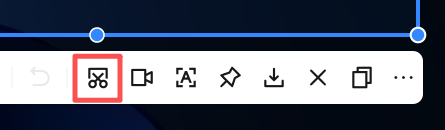 Scrolling screenshot icon
 Scrolling screenshot in progress
Before capturing a chat conversation, deal with any pop-ups, unloaded images, or overlays that could interrupt scrolling. Before capturing a full webpage, wait until the page has fully loaded to reduce stitching misalignment.
Capturing a webpage and capturing chat history both use scrolling capture, but the details that need attention differ:
| Scenario | What to check before capturing | Common problems |
|---|---|---|
| Webpage | Wait for the page to load completely and avoid interference from lazy loading or floating navigation | Misaligned stitching or images that have not finished loading |
| Chat conversation | Let the conversation view settle and prevent new messages or delayed avatars from appearing | Interrupted order or duplicated sections |
If you often work with help centers, news articles, or product pages, full-page captures will be more common. If your work centers on customer support, confirming requirements, or keeping project records, you are more likely to need scrolling captures of chat conversations.
When people hear “scrolling screenshot,” they usually picture capturing from top to bottom. In real work, however, horizontal scrolling screenshots are just as useful.
Vertical scrolling capture works well for articles, chat history, step-by-step tutorials, and product pages. Horizontal scrolling capture is better for wide tables, timelines, flowcharts, kanban boards, and admin pages with many columns. Whenever the core problem is that content extends beyond the current screen, a scrolling screenshot can help; you do not have to scroll downward.
That is why scrolling capture is more versatile than a regular screenshot. Instead of capturing one fixed region, it preserves an entire continuous section of information.
PixPin supports both vertical and horizontal scrolling screenshots, so it can accommodate different content types and page structures. In either direction, a scrolling capture lets you preserve the full context in one image.
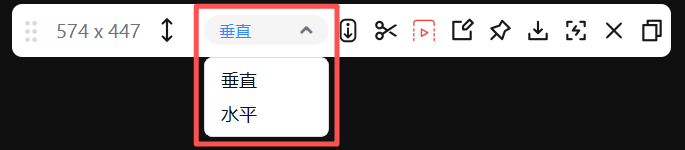 Switching the scrolling capture direction
If you scroll too far or later realize that you do not need part of the capture, PixPin lets you crop the scrolling screenshot. Scroll the page back to the range you want, then click a crop button to remove the extra content and keep only what you need. There are two crop buttons: one removes content above the selected range, and the other removes content below it. Choose the one that matches what you need to trim.
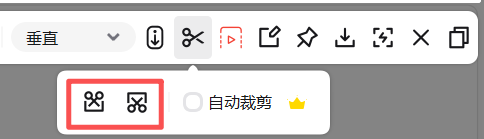 Crop buttons for a scrolling screenshot
If you reach the bottom and discover that more content lies outside the capture area, you do not need to start over. PixPin lets you move the scrolling capture window during the capture. Hold the Move button and drag the capture window down or to the right, then continue scrolling until you have captured everything you need.
The main benefit of a scrolling screenshot is not simply its length. It lets you view the complete context at once. The following use cases are especially common.
When you need to preserve a complete conversation, one scrolling screenshot of the chat is easier to review and forward than a set of disconnected images. It is useful for confirming requirements, documenting customer-support conversations, recording project discussions, and retaining evidence.
Continuity matters for chat content. Determining who said what first, when someone responded, and whether the context was misunderstood often depends on seeing the complete conversation.
Help-center articles, product introduction pages, campaign landing pages, news stories, and comment sections are all common targets for full-page screenshots. Unlike a capture of only the first screen, a scrolling screenshot preserves the entire page structure. The result is easier to understand whether you share it with a colleague or store it in a knowledge base.
On ecommerce sites, selling points, prices, specifications, reviews, and warranty, returns, and support information are often spread across one long page. A complete scrolling screenshot avoids switching between many separate images and makes it easier to compare multiple products side by side later.
Many online documents, meeting notes, weekly reports, and data reports have a clear scrolling structure. Turning them into long screenshots is useful for quick archiving and for direct use in group chats, emails, or presentation materials.
A scrolling screenshot does not simply “stretch” a webpage. The tool continuously records the screen while you scroll, then automatically stitches each frame together based on the overlapping content.
In simple terms, PixPin samples the page as it moves, identifies matching areas in adjacent frames, and merges the duplicated regions so that only the continuous content remains. This is also why scrolling too quickly, slow-loading dynamic content, or overlays that change while you scroll can affect the final result.
If certain pages are more prone to misalignment, it usually does not mean scrolling capture cannot handle them. More often, the page itself keeps refreshing elements while you scroll. Autoplay videos, floating support widgets, dynamic ads, and delayed-loading modules all make stitching harder. Letting the page settle before you start is usually more effective than fixing the image afterward.
The fastest approach is to use a tool with scrolling capture instead of taking multiple screenshots and joining them manually. Open the page, enter scrolling capture mode, select the area, and scroll. The tool detects overlapping sections automatically and produces one complete image.
A regular screenshot captures only the area currently visible on the screen. A scrolling screenshot also saves content beyond the screen as the page moves, making it better for webpages, chat history, and long documents.
The core process is nearly identical. The main difference is interface stability. A webpage may contain floating navigation and lazy-loaded modules, while a chat window is more likely to change because of new messages, delayed avatars, or date separators. Let the interface settle before you begin to get a continuous result.
PNG is usually the best choice for text-heavy long screenshots because it keeps text sharp without lossy compression. JPEG is useful when a smaller file size matters more than perfect text clarity. If you plan to annotate, archive, or place the screenshot in a document, keep the original-quality version to avoid repeated compression.
If you regularly save long webpages, chat history, product details, or online documents, scrolling capture is far more convenient than taking screenshots over and over. The real question is not whether your screenshot tool is capable enough, but how to preserve all the information at once.
For most people, the practical workflow is simple: use PixPin to enter scrolling capture mode, capture the complete content first, and then crop and organize it. This reduces repeated work and makes the result easier to share, archive, and reuse.
For a closer look at scrolling capture controls and usage tips, see the PixPin scrolling screenshot documentation.
Related posts
 Capture Guides
Learn how to take a screenshot on a Windows 11/10 PC or Mac. Compare the main shortcuts, steps, save locations, and PixPin capture tools.
 Capture Guides
Learn how to pin a screenshot or image on screen with PixPin, resize it, keep it always on top, lock it, or restore it from pin history.
 Capture Guides
Learn how to translate a screenshot or text in an image with PixPin on Windows and macOS. This guide covers shortcuts, toolbar and pinned-image methods, translation modes, target languages, and API key setup.