
How to Magnify Screenshot Details
Learn to magnify screenshot details with PixPin using the right shape, border, connecting line, magnification factor, Smooth or Pixel mode, and shadow.
 Image Annotation
To redact a screenshot with PixPin, use 「Mosaic」, 「Blur」, or 「Smart Erase」: capture only the area you need, fully cover names, email addresses, and account details, then open the saved image or check the pasted result. For repeated information, 「Auto Mosaic」 can help, but you still need to review each occurrence.
Besides names, email addresses, phone numbers, and account details in the main content, check avatars, corner notifications, file paths, attachment previews, and QR codes. The same information may appear in several places. Covering one occurrence can still leave others visible.
Check QR codes separately. If a code contains contact or account information, covering only the text beside it may leave that information readable through the code. First decide which details are relevant to your explanation, then handle each item you need to hide.
All three modes are available from the same 「Mosaic」 annotation tool. Their main difference is the visual result.
| Mode | Result | When to try it |
|---|---|---|
| Mosaic | Creates visible pixel blocks | Use it when you want the covered area to be obvious; check the overall appearance before applying it to a large area |
| Blur | Produces a smooth transition between surrounding pixels | Try it for large areas where a softer transition helps; check whether the text remains readable |
| Smart Erase | Fills the background based on the selection boundary | Try it on clean backgrounds, such as black text on white; check complex backgrounds for unnatural patches |
「Mosaic」 and 「Blur」 have adjustable strength. 「Smart Erase」 has no strength adjustment, runs an offline model, and requires a membership. A natural appearance does not mean the information has been fully hidden. Check the coverage and final image with all three modes.
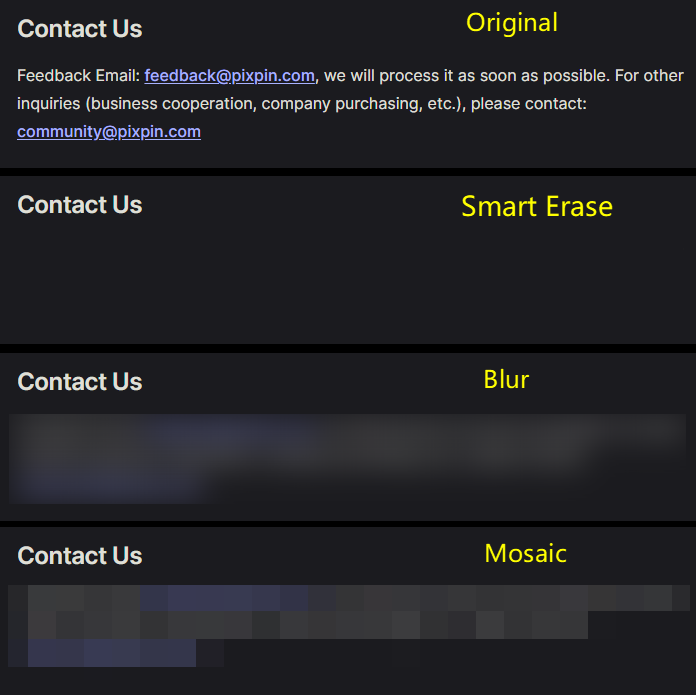 The same contact email shown in the original image and after Smart Erase, Blur, and Mosaic
The image shows the original, 「Smart Erase」, 「Blur」, and 「Mosaic」 results in that order. Choose a mode that suits the background and area you need to cover.
Capture only what is needed to explain the issue, leaving out unrelated notifications, sidebars, and profile cards where possible. Once you have selected the area, check it for private information.
Select 「Mosaic」 on the screenshot annotation toolbar, then choose 「Mosaic」, 「Blur」, or 「Smart Erase」. See the Mosaic, Blur, and Smart Erase documentation for mode effects and drawing methods.
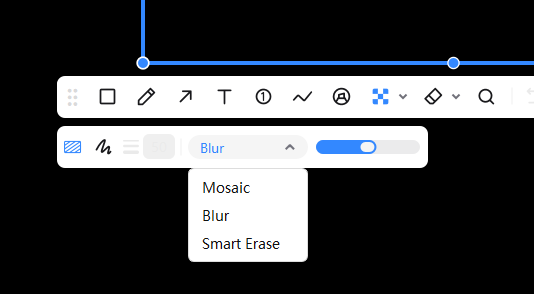 Mosaic, Blur, and Smart Erase options in the PixPin Mosaic tool
The screenshot shows the three mode options: 「Mosaic」, 「Blur」, and 「Smart Erase」.
Use a rectangle for straight lines of text, account details, and profile cards. Use a brush for avatar edges or other irregular areas.
Drag a rectangle over the target area or paint over it with the brush. Release the mouse button to apply the effect.
Cover the first and last characters, underscores, and any related identifiers on the same line that also need to be hidden. Avoid covering only the middle of the text.
For 「Mosaic」 and 「Blur」, adjust the strength slider and check whether the text remains readable.
If you want 「Smart Erase」 to leave a clean, solid background, keep other text, icons, and noise out of the selection boundary. Complex backgrounds may produce unnatural patches. If a large selection looks poor, try smaller sections and check each one.
If the result is unsatisfactory, use 「Undo」 on the toolbar and try again. The default Windows shortcut is 「Ctrl+Z」. On macOS, check the assigned shortcut under 「Configuration」 → 「Built-in Shortcut」.
After covering the information, check the preview in the save dialog, then save or copy the image. Save the edited version separately to reduce the chance of sharing the original by mistake. The checks below explain how to review the saved result.
「Auto Mosaic」 helps cover repeated instances of the same content, such as usernames, avatars, and identifiers. It supports mosaic and blur effects. It is a separate toolbar tool from the standard 「Mosaic」 tool described above.
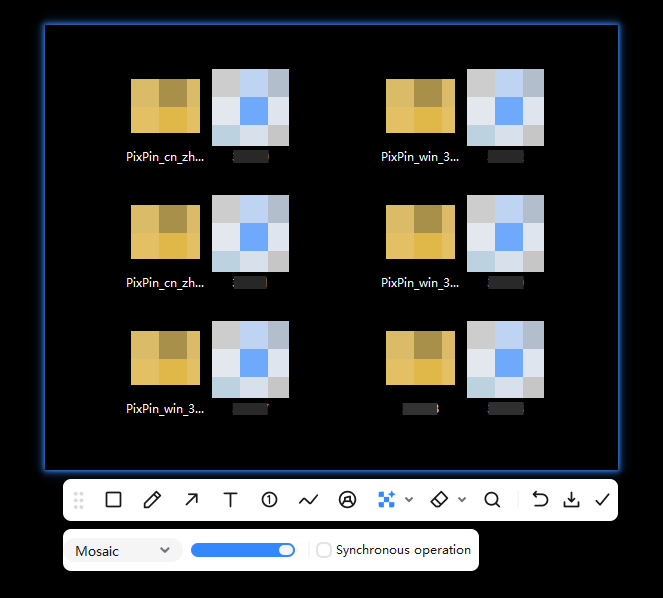 PixPin Auto Mosaic covering repeated desktop icons
Repeated icons demonstrate the matching and covering effect. When handling private information, also check for missed areas and incorrect matches.
If you cannot find the button, open 「Configuration」 → 「Annotation」 → 「Annotation Button Adjustment」 and check whether it is in the secondary area or has been removed.
To update matching occurrences together, enable 「Synchronous operation」. Adding or removing one Auto Mosaic occurrence then updates the other matching content as well. This membership feature can be toggled on the Auto Mosaic toolbar or configured under 「Configuration」 → 「Annotation」 → 「Auto Mosaic」.
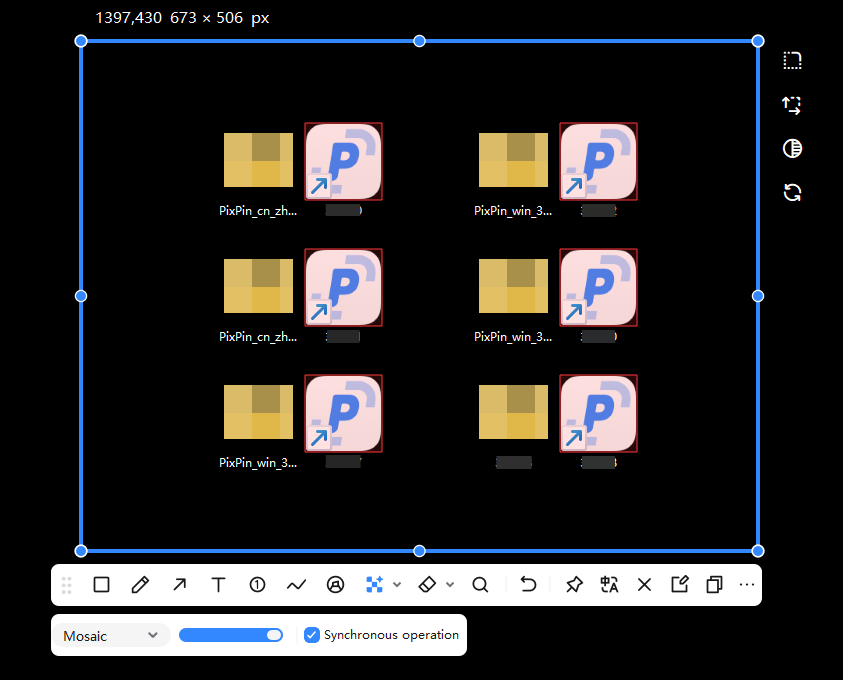 Synchronous operation enabled on the PixPin Auto Mosaic toolbar
The 「Synchronous operation」 option is checked in the screenshot.
Auto Mosaic may not detect and cover all private information, so review each item afterward. Even when some content has not been covered automatically, the tool can often identify its content block. Click a recognized block to add or remove mosaic without dragging a box. If the area has not been recognized, cover it with the standard 「Mosaic」 tool.
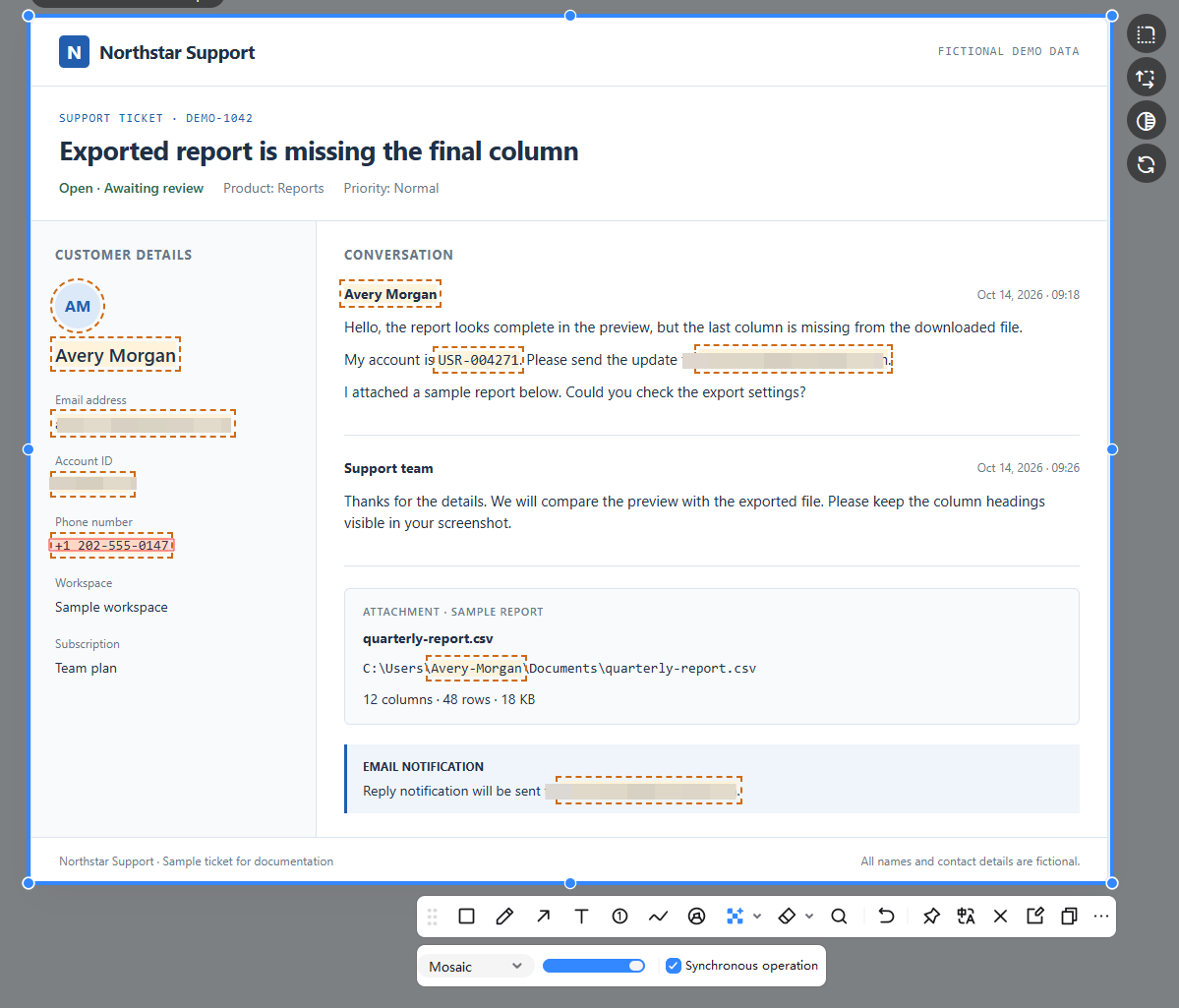 A demo support ticket after Auto Mosaic still shows a name, phone number, account details in the body, and a username in a file path
This example uses fictional information. Some email addresses and account details have been covered, but a name, phone number, account details in the body, and a username in a file path remain visible. The redaction in this image is unfinished. Click recognized blocks to cover missed information, then save and open the final image for another review.
Open the image as a pinned image, then use the same annotation tools. Using the default Windows shortcuts:
Shortcuts are customizable. See the guide to pinning screenshots and local images and the annotation basics documentation for more details.
If text remains readable, characters show at the edges, or a block has been missed, return to annotation, cover the remaining information, then save or copy and check again.
Adjust the blur strength with the slider and check whether the text remains readable. For large areas, blur usually gives a softer transition than mosaic. Fully cover the information and inspect the exported image; the selection size or slider position alone cannot establish the result.
First check whether the selection boundary includes other text or icons. 「Smart Erase」 is better suited to solid backgrounds. For complex areas, try a smaller selection, work in sections, or switch to 「Mosaic」 or 「Blur」.
Check the actual matching results. You can add or remove matches afterward, and any missed areas still need to be covered manually.
Open the standard 「Mosaic」 tool, expand the mode list, and choose 「Smart Erase」. It does not appear in 「Auto Mosaic」. 「Smart Erase」 requires a membership.
When you redact a screenshot, the result should fully cover the information you need to hide and pass a check of the saved or pasted image. Automatic matches, toolbar previews, and effect strength cannot replace reviewing the final image.
If you have not installed the app, download PixPin and follow this guide to edit a screenshot or local image. If it is already installed, open 「Mosaic」 to get started. For detailed interface instructions, see the Mosaic, Blur, and Smart Erase documentation.
Related posts
 Image Annotation
Learn to magnify screenshot details with PixPin using the right shape, border, connecting line, magnification factor, Smooth or Pixel mode, and shadow.
 Image Annotation
Use PixPin Spotlight to highlight key information in busy screenshots, reduce visual clutter, and create clearer bug reports, design reviews, and tutorials.
 Capture Guides
Fix PixPin scrolling screenshots that stop, cut off, repeat, or misalign. Check the capture area, preview, hover effects, and saved image size.