
How to Take a Screenshot on a Computer: Windows and Mac Shortcuts
Learn how to take a screenshot on a Windows 11/10 PC or Mac. Compare the main shortcuts, steps, save locations, and PixPin capture tools.
 Capture Guides
To translate a screenshot with PixPin, press Ctrl+1 on Windows or Control+1 on macOS, select the foreign-language content on your screen, and use the translation shortcut. The translated text appears in the results window. PixPin screen translation processes everything inside the selected screenshot area; it does not continuously translate your screen in real time. You can select a small area or the full screen, but a larger selection usually takes longer to recognize and translate.
If PixPin is not installed yet, download PixPin, then follow the complete screenshot translation steps below.
Open the translation settings in PixPin:
Configuration > System > Translate配置 > 系统 > 翻译Here you can choose a translation mode and default target language.
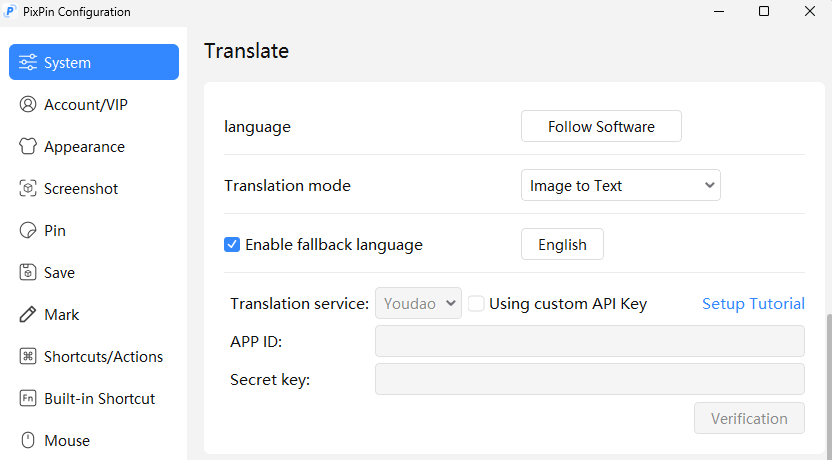 Language and translation mode settings for PixPin screenshot translation
The two image translation modes use different services and present their results differently:
| Translation mode | Requirements | Result format |
|---|---|---|
| Image to Text | Available to members and uses the member-only large language model | View text and images in the translation results window and switch between the original and translated image |
| Image to Image | Available to members; non-members can use it after adding a Baidu Translate Open Platform or Youdao Translation API key | Processes image translation through Baidu Translate Open Platform or Youdao Translation |
Based on translation accuracy and how the results are displayed, Image to Text is the recommended mode for members. Members can choose either mode. Non-members can only use Image to Image and must configure their own Baidu Translate Open Platform or Youdao Translation API key.
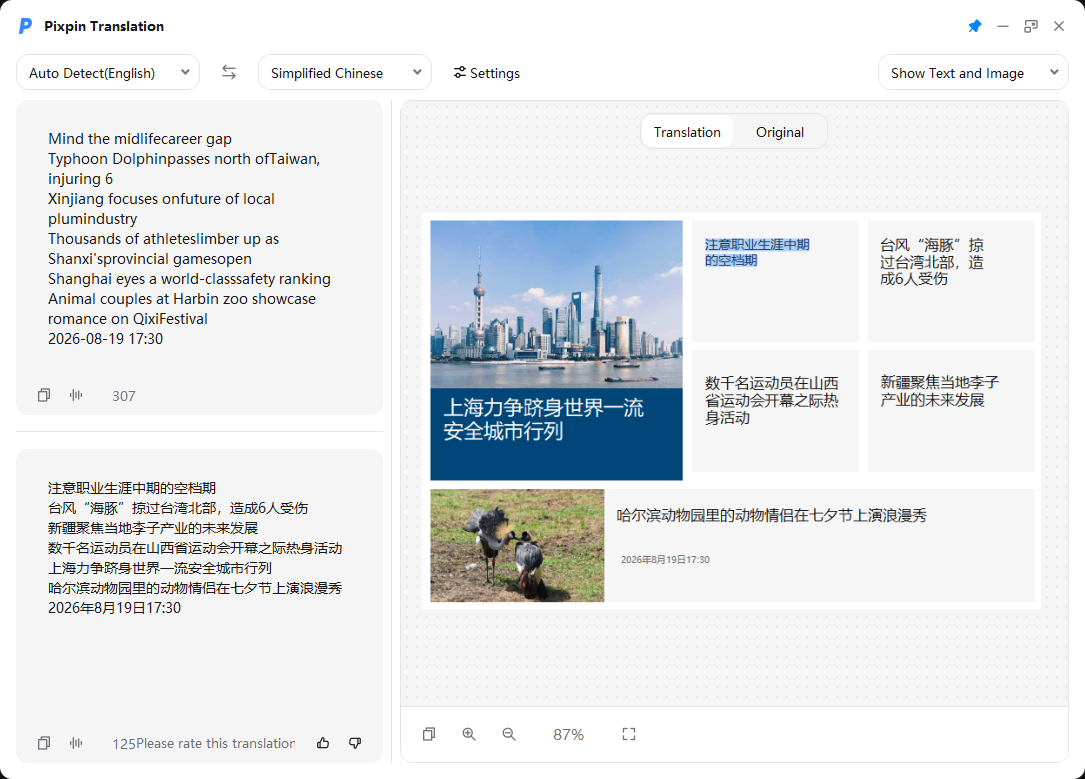 Side-by-side image and text results in PixPin Image to Text mode
In PixPin 3.5.0.8 and later, Image to Text supports side-by-side translation. The results window can display both text and images, with Translation and Original controls for switching views. When Translation is selected, translated text appears at the corresponding position in the original image. This display is limited to the translation results window and does not modify the original image file.
Before PixPin 3.5.0.8, Image to Text displayed translated text only and did not show translation results in the image area.
The target language selected in Configuration becomes the default for each translation. In the Image to Text results window, you can temporarily change the target language for the current translation without replacing the default setting.
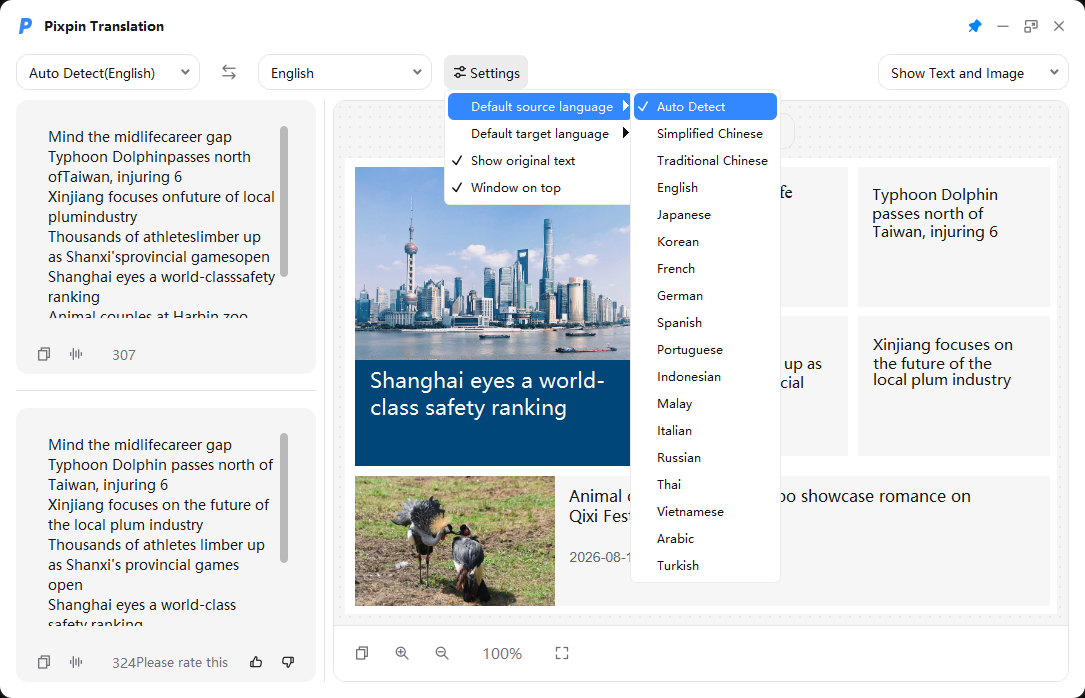 Source and target language menus in the PixPin translation window
The following target language options are currently available. Refer to the PixPin interface for the exact option names:
| Follow Software | Simplified Chinese | Traditional Chinese |
| English | Japanese | Korean |
| French | German | Spanish |
| Portuguese | Indonesian | Malay |
| Italian | Russian | Thai |
| Vietnamese | Arabic | Turkish |
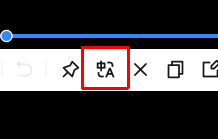 Translate button on the PixPin screenshot toolbar
After translation finishes, you can change what appears in the results window:
Show Text and Image: display both text and the image.Show Image Only: display the image only.Show Text Only: display text only.Use the controls in the upper-left corner to change the source and target languages. The translation window has Text and Image sections, with text on the left and the image on the right. In the image area, use the mouse wheel to zoom or select text directly in the image.
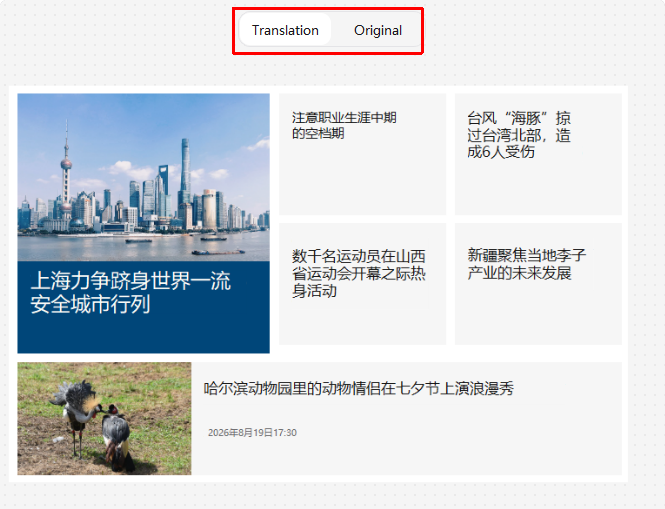 Translation and Original controls in the PixPin translation results window
Click Translation in the image area to view translated text at the corresponding positions in the original image. Click Original to return to the source image. If the recognized source text is incorrect, you can edit it manually and translate it again.
Members do not need to configure an API key. They can use translation directly and choose between Image to Text and Image to Image.
Non-members can add their own Youdao Translation or Baidu Translate Open Platform API key in PixPin, but they can only use Image to Image. Follow the corresponding Setup Tutorial and enable both image translation and text translation on the provider’s platform. Translation usage and quotas depend on the API provider’s rules.
Image to Text supports more languages than Image to Image, and most languages can be translated. Check the current lists in the translation window for the available source and target languages.
No. The translation shortcut is Ctrl+Q on Windows and Option+Q on macOS. To start a screenshot, use Ctrl+1 on Windows and Control+1 on macOS.
In PixPin 3.5.0.8 and later, Image to Text can display translated text at the corresponding positions in the original image inside the results window. You can switch between Original and Translation. This display does not modify the original image file.
Check whether the image is blurry or has a low resolution, whether the selection contains unrelated content, and whether the current language is supported. If you cannot improve the image or selection, edit the source text manually in the PixPin translation results window and translate it again.
To translate a screenshot with PixPin, select the content on your screen, start translation with a shortcut or toolbar button, then review and adjust the image text translation in the results window. Image to Text is the recommended mode for members. Non-members can configure a Baidu Translate Open Platform or Youdao Translation API key and use Image to Image.
When you need to translate text from a webpage, software interface, or image that cannot be copied, download PixPin and follow this guide. For long text that can be copied or a precise selection on a complex background, text translation is a better fit.
Related posts
 Capture Guides
Learn how to take a screenshot on a Windows 11/10 PC or Mac. Compare the main shortcuts, steps, save locations, and PixPin capture tools.
 Capture Guides
Learn how to pin a screenshot or image on screen with PixPin, resize it, keep it always on top, lock it, or restore it from pin history.
 Capture Guides
Learn how to record a GIF on Windows or Mac with PixPin. Select a screen area, capture your actions, and export a GIF with the right frame rate and quality.